
SKU List
SKU List is your whole catalogue in one table. Every part appears once. Each row shows the part’s status this cycle, its category and its supplier. It also shows the supplier’s item code, the unit you buy in, the pack size, and the stock you have on hand.
Use it to find a part and open its page. It is also where you fill in supplier details, which go onto exported purchase order files.
Where to find it: Stock → SKU List in the top menu.
When should I open this page?
Section titled “When should I open this page?”Any time you need to find a part quickly. During setup, most people spend time here filling in supplier details for their top suppliers’ parts.
Inventory planners use it all the time. Procurement managers use it during setup, and whenever a purchase order file comes out with blank supplier details. Branch managers use it now and then, to check stock at their branch.
What am I looking at?
Section titled “What am I looking at?”The top of the page
Section titled “The top of the page”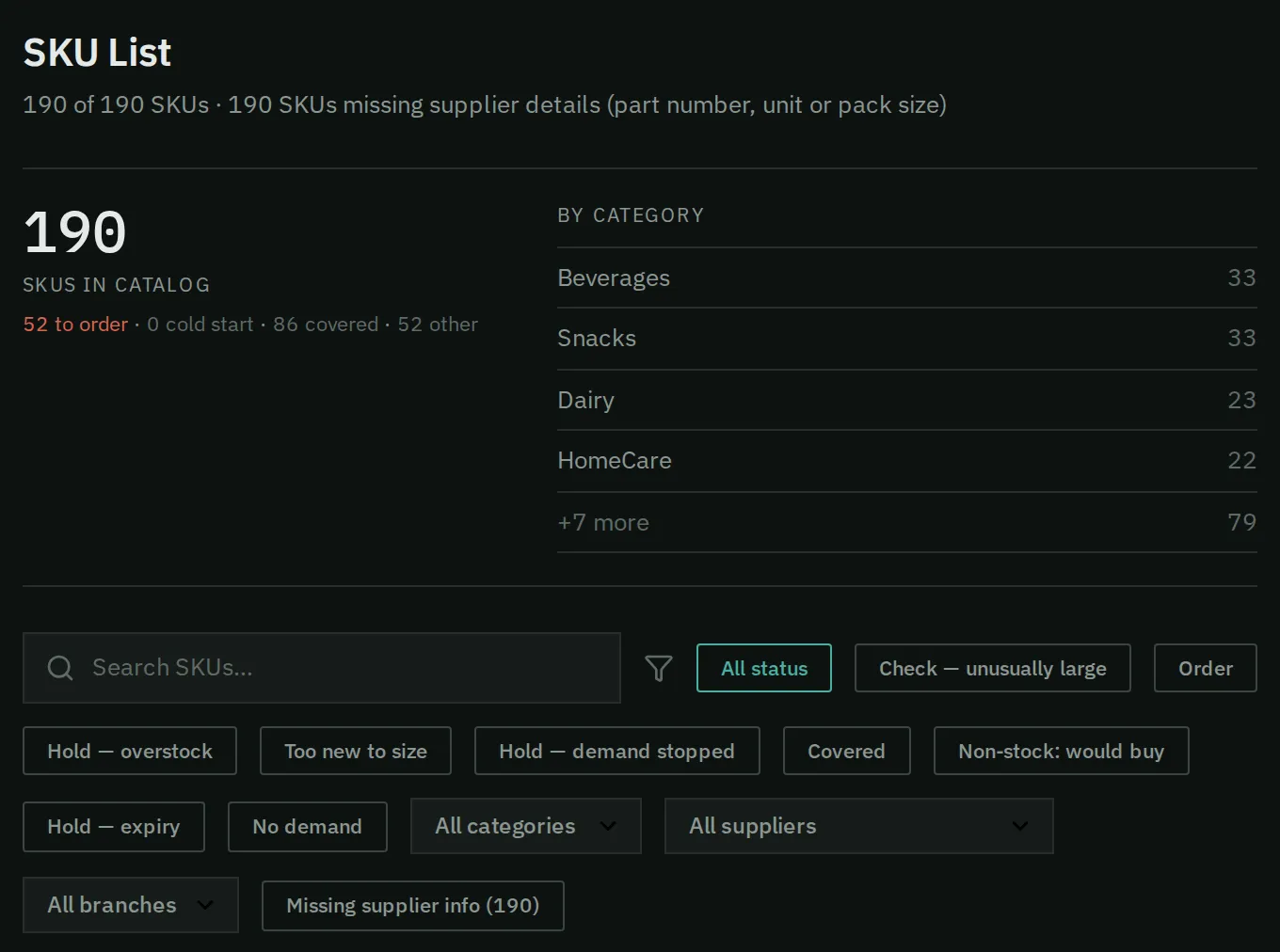
The title shows how many parts you are looking at, and how many still lack supplier details.
The title tells you how many parts are showing. It also tells you how many still lack supplier details.
The summary band
Section titled “The summary band”The summary band counts your parts by status: parts to order, parts covered, and others. “Other” means parts with no demand, plus parts Narada has put on hold.
Below it, the top categories show with their counts. Click a category to show only that category. Click it again to clear the filter.
The count of parts to order is not the same as the count of lines on What to Order. What to Order counts each part at each branch, so the two numbers differ by design.
The filters
Section titled “The filters”- Search SKUs… finds parts by code or name.
- Status buttons show parts with one status, such as Order, Covered or No demand. The Hold statuses mean Narada has held the part back. A No demand part says why when all its branches agree: Only sold as special orders, Never sold at this branch or No sales lately.
- Category, Supplier and Branch menus narrow the list.
- Missing supplier info shows only parts with no supplier details.
The table
Section titled “The table”Each row shows:
- SKU: the part code and name. A small flame and days appear beside a name when a batch is near expiry.
- Status, Category and Supplier.
- Supplier SKU: the item code your supplier uses for the part.
- UOM: the unit you buy in, such as EA for each, CS for case or BX for box.
- Pack size: how many units come in one pack.
- On hand: the stock you have now.
Click a row to open that part’s detail panel. Press the arrow keys to move to the next part.
How do I find a part?
Section titled “How do I find a part?”- Type its code or name in Search SKUs….
- Click the row to open its detail panel.
How do I fill in supplier details?
Section titled “How do I fill in supplier details?”- Press Missing supplier info to show only parts without supplier details.
- Click the Supplier SKU, UOM or Pack size box in a row.
- Type the value, then click away from the box. The value saves when you leave the box.
To clear a box, leave it empty. A pack size must be a whole number above 0. Anything else is ignored.
How do I see one branch’s stock?
Section titled “How do I see one branch’s stock?”Pick the branch in the Branch menu. The On hand column then shows that branch’s stock. The list of parts does not get shorter.
How do I know it worked?
Section titled “How do I know it worked?”The value you typed stays in the box after you leave it. Open Missing supplier info again later to see which parts still need details.
Common questions
Section titled “Common questions”Why does every part say “missing supplier info”? Those parts have no supplier item code, unit or pack size yet. Fill them in from a product file on the Data page, or type them here.
Does Pack size change how much Narada suggests you order? No. The pack size only goes onto the exported purchase order file. Narada rounds order quantities using each part’s minimum order and order multiple. See What to Order.
I picked a branch and the list did not get shorter. The branch menu changes the On hand column only. It does not change which parts are listed.
What this page does not do
Section titled “What this page does not do”- It does not change price, cost, supplier or category. Those come from your uploads.
- It does not fill in supplier details in bulk. Use a product file upload on the Data page for that.
- It does not export the table.
- It does not ask you to confirm before it saves a supplier field.
- Data: upload a product file that already has supplier details.