
A part's page
The part page shows everything about one part, at every branch, on one screen. You see its state now, what Narada recommends and why, and the forecast with its range. You also see the working behind every number, and its money and history.
It has sliders to test what a different lead time or safety target would do. Nothing you do on the sliders changes the real recommendation.
Where to find it: click any part name, on What to Order, Orders, Purchase Orders, Forecast, or inside a finding. The part’s page opens over the page you came from. This page comes with the Planner plan.
When should I open this page?
Section titled “When should I open this page?”Before you change a quantity. Open it to see the working behind a number, and the state of the part at the other branches. Owners open it when the same part keeps showing up, to see its margin, who buys it and how it has been ordered. Sales checks it before quoting a customer, for stock and incoming orders at every branch.
What am I looking at?
Section titled “What am I looking at?”The header
Section titled “The header”At the top are a back link, and arrows to step through the parts in the list you came from. You also see the part’s class (A, B or C: how much the part matters to your sales, see Words we use), its category, its name, its code and its supplier.
Under it are two buttons. Open in PO editor takes you to the purchase order page for this part (it can also read Clear Stock or What to Order, depending on where you came from). Ask Narada about this SKU asks the assistant what is going on with this part at every branch.
What to do now
Section titled “What to do now”Under the buttons, the page leads with the story of the list you came from.
- Buying: units to buy, the order value, and the day to order by. The page buys one line for all branches, so its total can be smaller than the branch rows added up. When that happens, a line says so, for example “One PO line for every branch: 14 units. The branch rows below add to 15 because each rounds up on its own”.
- Running out: the days until the first branch is empty, and the margin lost each day a branch is out. That loss stops when stock arrives.
- Stuck stock: the value tied up and what you could get back.
Two lines can appear under it, whatever the story:
- Already drafted, not sent: draft purchase orders already made for this part. A draft is not on order until it is sent, so the units to buy still count it.
- Move first: stock at another branch covers the need, for example “Move first: 13 units from BR-03 + BR-02 to BR-01 covers it”. It says how much you don’t have to buy. You apply the move on What to Order.
The disagreement box
Section titled “The disagreement box”Sometimes two pages of Narada disagree about the same part. When that happens, a box says so. It gives Narada’s resolution, and says what the resolution does not settle.
When nothing needs buying
Section titled “When nothing needs buying”If the part needs no order and has no stock-out risk, a line says so. If Narada is holding a buy back at a branch, the line names the branch and why, for example “A buy is held back at BR-02: Check — unusually large”. When stock is stuck anyway, it lists where instead, for example:
- “NOR: stopped selling, $3,209 of stock (one of 12 parts in that branch’s finding)”: the part sits inside a dead-stock finding for that branch.
- “NOR: 40 units expire in 17 days and won’t sell before then ($2,220)”: a batch will expire before it sells.
See it on Clear Stock opens the page where you deal with it. “Nothing trapped” only shows when neither is true.
This SKU right now
Section titled “This SKU right now”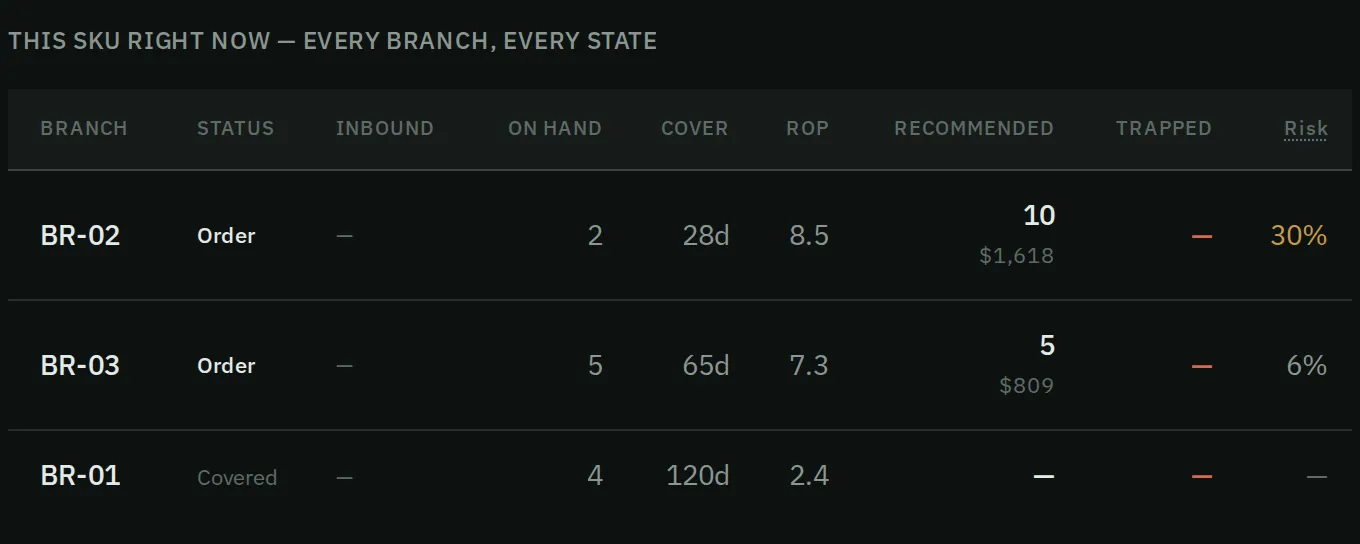
Every branch in one table: what is coming in, what is on hand, how long it lasts and the reorder point.
This table shows every branch on its own row. For each branch you see the status, stock coming in, stock on hand, cover, reorder point, recommended order quantity, trapped value and risk.
Cover is how many days the stock will last at the usual pace of sales.
Demand and forecast
Section titled “Demand and forecast”A chart shows actual demand as a solid line, for the last 26 full weeks up to where your sales data ends, and the forecast as a dashed line. A shaded band shows the 90% range. The line where they meet reads “latest data”.
Under it, a sentence gives the range of weekly sales and the day the part last sold, for example “Last sold 29 Aug 2026, 43 days before your latest sales data”.
The block also says whether the forecast drives buying, how its last graded week went, and what the range means in plain words.
Receipts
Section titled “Receipts”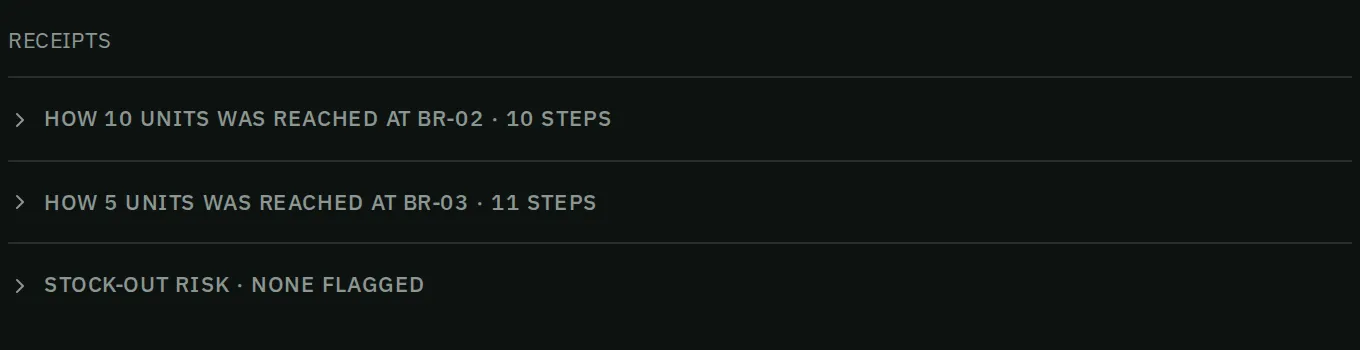
Receipts: one line per branch. Open one to see how its order quantity was reached, step by step.
Every number on the page has a receipt. A receipt is the working, one plain step per line, with its figure. Each receipt has a title, such as the working for one branch’s order quantity. Press the title to open it.
Press Raw formula to see the formula behind a receipt.
Money and history
Section titled “Money and history”This section shows return on stock (GMROI) for a year at the pace of the last 90 days, with the revenue and margin. Cost includes freight and duty when your files give them, as on the rest of Narada. It also lists the customers who buy the part, and the reorder point history night by night.
The purchase order history counts every order for the part, and shows the latest 20. Each line says where the order stands: “draft, not sent”, “on order”, “6 of 8 received”, or “cancelled”.
The supplier line gives the promised lead time, and the time measured over every delivery from that supplier, for all its parts.
Check it yourself
Section titled “Check it yourself”Two sliders, Lead time and Safety-stock target, let you test a different input. They start at the numbers Narada uses now. When you stop moving one, Narada works the part out again, the same way as the real buy list. This takes 20 to 30 seconds, and a line says it is working. Nothing is saved.
How do I check a part before I change an order?
Section titled “How do I check a part before I change an order?”- Open the part from any list. Read the branch table first. Is the problem at one branch, or at all of them?
- If the disagreement box shows, read Narada’s resolution, and what it leaves open.
- Open the receipt for the number you doubt. Each step is a plain sentence with its figure.
- Press the arrows, or the left and right arrow keys, to move to the next part without going back to the list.
How do I test a lead time or safety target?
Section titled “How do I test a lead time or safety target?”- Move the Lead time slider to the time the supplier really takes.
- Move the Safety-stock target slider to the level of risk you accept, for running out.
- Wait for the reorder point and the order quantity to change (20 to 30 seconds).
- If your test was right, fix the input at its source, on Your Numbers or Settings.
Common questions
Section titled “Common questions”Why does the part say “Updating after a recent change”? You or someone on your team just changed something this part depends on, such as an order marked placed or a move answered. The numbers shown are from just before that change. Narada works out the new ones in the background, usually within a minute, and the page switches by itself.
Why does the page lead with one particular story? If you open the page directly, it leads with the most urgent thing live on the part. For example, a branch that will run out soon. If you open it from a list, that list’s story leads.
What is return on stock? It is the margin the part would earn in a year at its pace over the last 90 days, for each dollar of stock held. A figure below one means a year’s margin is less than the money tied up in stock. A part with only one or two sales can show a very high or low figure, so read it beside the revenue.
What does “trapped” mean? Stock that is stuck, meaning it is not selling. It is counted at cost. When a branch’s dead stock is one finding for many parts, the Trapped column shows this part’s share of it.
What is cover? The number of days the stock on hand will last at the usual pace of sales.
What this page does not do
Section titled “What this page does not do”- The sliders do not save anything. To change the real input, use Your Numbers or Settings.
- It does not edit the part record or its price.
- When two pages disagree, the resolution does not add their figures together. It says what it does not settle.
- What to Order: the buy list, with each part’s reason.
- Clear Stock: the stock that is trapped and not selling.