
Ask Narada
Ask Narada is the assistant. Type a question in plain words, and it answers using your own numbers. Most answers have figures, a table, a chart or a card underneath, so you can check them.
When the answer is work, such as a chase email or a draft purchase order, Narada prepares it as a card. Nothing is sent or changed until you click. The one exception: a photo of an order creates draft purchase orders straight away, and you check them before anything is sent.
Where to find it: the Narada bar at the bottom of every page. Press Ctrl K (⌘ K on a Mac) to open it from any page.
When should I open this page?
Section titled “When should I open this page?”Use Ask Narada through the day, while you work.
Planners ask why a part is ordering a certain quantity. Buyers ask for a chase email when a supplier is late. Owners ask what to look at today, or where their money is stuck. Finance asks where money is stuck and about overdue customers.
What am I looking at?
Section titled “What am I looking at?”The bar
Section titled “The bar”The bar sits at the bottom of every page. It shows three suggested questions for the page you are on. It also shows Ctrl K, which opens the conversation panel.
The suggestions change with the page. For example:
- On Today: “What should I look at today?”, “Where is my money stuck?” and “Explain my biggest issue”.
- On What to Order: “What’s most urgent to order?”, “Build the POs for me” and “What can I cover by transfer instead?”.
- On Cash: “Where is my cash locked up?”, “What will we pay suppliers over the next 8 weeks?” and “What’s the fastest cash to free?”.
Click a suggested question to ask it straight away.
The conversation panel
Section titled “The conversation panel”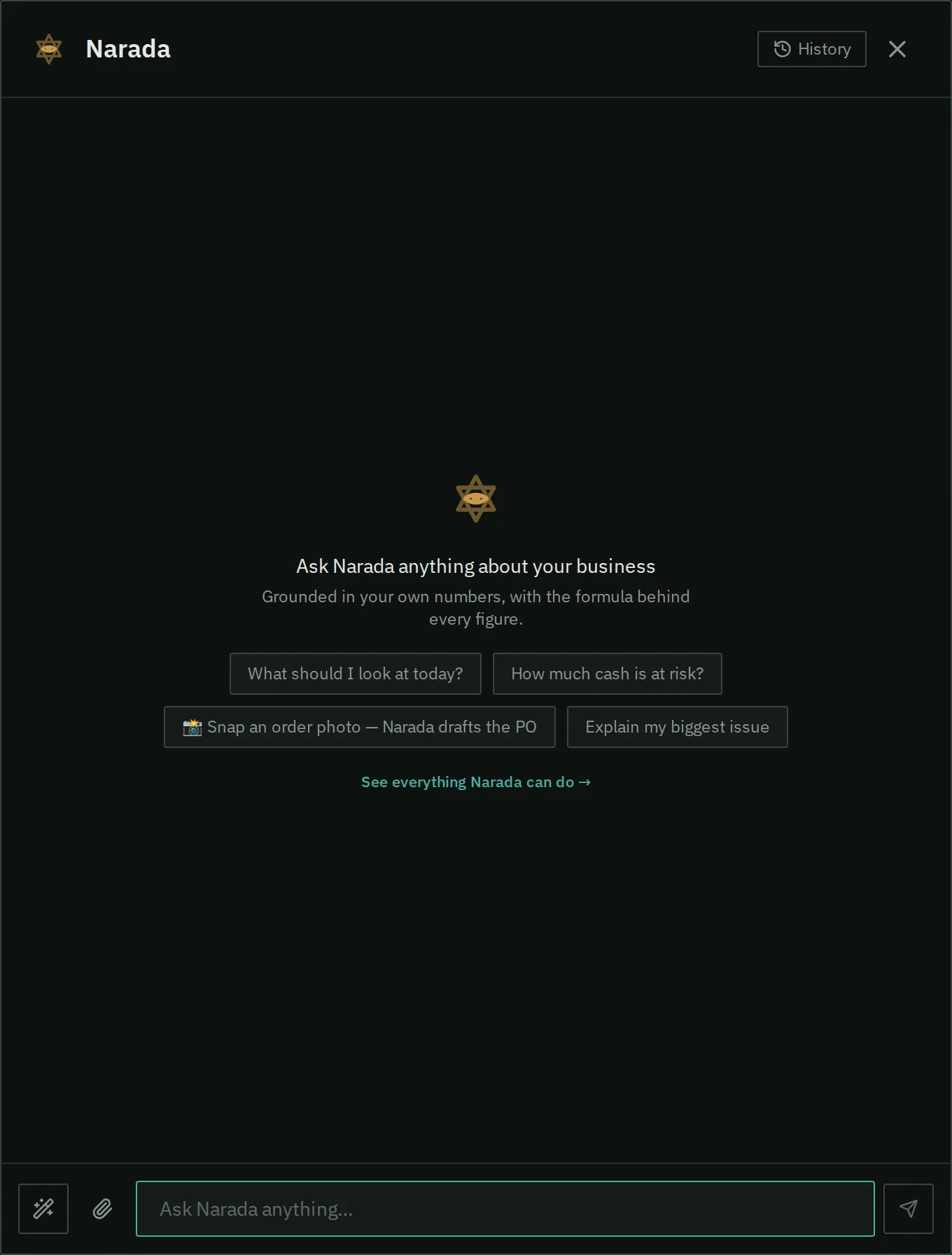
The Narada panel. Type in your own words, or start from a suggested question. History is at the top right.
The panel opens on the right. When it is empty, it says: “Ask Narada anything about your business.” It then offers starter questions, and a link to See everything Narada can do →.
An answer
Section titled “An answer”An answer has two parts.
- A short written answer. The first sentence gives the answer. The last line, Do this now, names the most useful next step.
- The evidence underneath. This can be headline figures, a table, a chart, or a card. It comes straight from Narada’s own calculations. The words are a summary of it.
Follow-up suggestions appear under the last answer.
Skills
Section titled “Skills”The Skills button (✦) sits next to the question box. It lists everything Narada can do, in four groups:
- Understand: today’s focus, money stuck (“Where is my money stuck, and why?”), and explain my biggest at-risk amount.
- Free up cash: who to chase, clear dead stock, and where your cash is.
- Order: reorder plan, build purchase orders, photo to purchase order, photo to price update, and cover by transfer.
- Draft for me: payment reminder, return request, and chase a supplier.
Click a skill to ask it.
How do I ask a question?
Section titled “How do I ask a question?”- Open the bar, or press Ctrl K (⌘ K on a Mac).
- Type your question the way you would ask a colleague. You do not need special words.
- Press Send. Or click one of the three suggested questions, which sends straight away.
Two habits give better answers:
- Name the thing. Use the part code, the supplier name, or the PO number.
- Write numbers as digits. Write “500”, not “five hundred”.
On a finding, click Ask Narada. The finding you are looking at goes along with your question.
How do I read an answer?
Section titled “How do I read an answer?”Read the first sentence first. Then read the Do this now line.
Then check the table or chart under the answer. The table is the calculation. The words are a summary of it. If the words and the table ever disagree, trust the table. Then tell us, as described in When an answer looks wrong.
How do I keep going with a question?
Section titled “How do I keep going with a question?”- Ask a follow-up straight away. Try “and at the other branch?” or “why?”. The assistant remembers the conversation.
- Click a Follow up suggestion under the answer.
- Click New chat to start a fresh topic. The assistant then forgets the earlier conversation, so old figures do not mix in.
Answers use the latest analysis run. If the data is old, the answer says so. For example, it may say the figures are from the last run, three days ago.
What can I ask?
Section titled “What can I ask?”Copy any of these examples, and change the names to yours.
Your day
Section titled “Your day”- “What should I look at today?”
- “What changed since the last run?”
- “What runs out first?”
- “What did the overnight investigations find?”
Money and cash
Section titled “Money and cash”- “Where is my money stuck?”
- “Where is my cash locked up?”
- “What’s the fastest cash to free?”
- “What will we pay suppliers over the next 8 weeks?”
- “What have we saved or recovered?”
- “Who should I chase today?”
- “Which customers are ordering less than they used to?”
Stock and ordering
Section titled “Stock and ordering”- “What should I order this week?”
- “How much of a part should I order?”
- “Why is a part ordering a certain quantity at a branch?”
- “Can I cover a part at a branch by moving stock?”
- “What’s on order, and when does it arrive?”
- “What runs out in the next 7 days?”
- “What can I return to suppliers?”
- “What’s expiring soon?”
- “What’s waiting on me on the Orders desk?”
Parts, suppliers and branches
Section titled “Parts, suppliers and branches”- “How is this part doing?”
- “How much will we sell next month?”
- “Which parts are hardest to forecast?”
- “Which supplier is late most often?”
- “Which branch has the most dead stock?”
- “Compare my branches.”
- “What’s wrong in my ERP settings?”
- “How has our in-stock rate moved?”
Problems Narada found
Section titled “Problems Narada found”- “Break my issues down by type.”
- “What should I fix first?”
- “Explain this, and what do I do?” Open an issue first, then click Ask Narada.
- “Where does that number come from?”
The app itself
Section titled “The app itself”- “Where do I set a supplier’s minimum order?”
- “What does dead stock mean?”
- “What can you do?”
Advice
Section titled “Advice”Ask “What should I do?” or “Is this healthy?”. The assistant answers like an experienced operations analyst. It names the principle, such as days of cover or minimum-order cost, and applies it to your figures. Any general rule of thumb is labelled as general. It is never presented as your number.
How does Narada do the work for me?
Section titled “How does Narada do the work for me?”Ask Narada to do something, and it prepares the work as a card. The card shows exactly what will happen, with the before and after figures.
Nothing is sent or changed until you click, except that a photo of an order creates draft purchase orders for you to check. Every click is recorded with your name.
- Ask. For example: “Set the quantity on this line of a draft purchase order to 90.”
- Read the card. It shows what changes, with the old and new figures side by side.
- Approve, or ignore it. Ignoring a card changes nothing. The card stays where it is.
- See the result. The card shows what happened.
Three safety rules apply to every card:
- It checks again when you click. Someone may have changed the same thing after the card was made. Then the card refuses, and your colleague’s edit is never overwritten.
- One click saves once. Clicking twice by accident does not save twice.
- Your rights decide. If your account cannot make the change, the button is greyed out, and the card says why.
If Narada shows a card you did not ask for, ignore it. One answer never shows two cards for the same thing.
The cards
Section titled “The cards”Draft an email
Section titled “Draft an email”Narada can draft five kinds of email:
- a chase to a late supplier;
- an order request;
- a payment reminder to a customer;
- a request to return dead stock to a supplier;
- a team briefing.
Check the To line, the subject and the text. Open in my email opens your own mail app with the draft filled in, so it goes from your company address. Copy copies it, so you can paste it into your email.
Drafting needs the Draft emails permission.
Build draft purchase orders
Section titled “Build draft purchase orders”Narada builds draft purchase orders from the order list, one for each supplier. This needs the Planner plan and the Draft purchase orders permission. Press Create draft PO. A draft is never sent to the supplier or to your ERP. Press Review & edit to open it.
This needs the Draft purchase orders permission.
Change or remove a line on a draft purchase order
Section titled “Change or remove a line on a draft purchase order”Ask Narada to change a quantity on a draft, or to remove a line. For example, “Drop this item from that PO.”
- This needs the Planner plan.
- Only drafts can be changed. A purchase order already sent is refused.
- Only the quantity changes. Setting it to 0 removes the line. A purchase order keeps at least one line.
- A big change needs a short reason. A change of more than 20%, or a large amount of money, counts as big. The card asks for the reason.
- A quantity far above what this part usually orders asks you to confirm a second time.
- The purchase order’s own edit history records the change.
This needs the Draft purchase orders permission.
Change a supplier’s lead time
Section titled “Change a supplier’s lead time”Ask Narada to change a supplier’s lead time, the days it takes them to deliver. The card shows the old and new lead time.
The card also says whether today’s orders will change. When Narada has enough of a supplier’s delivery history, it plans on the measured deliveries instead. In that case the card says the new lead time does not change today’s orders. The lead time you type is only used where there is no history.
This needs the Edit business settings permission and the Planner plan.
Change a setting
Section titled “Change a setting”You can change three settings from chat:
- the dead-stock threshold, the number of days after which stock counts as dead stock;
- the target maximum cover, the most days of stock you want to hold;
- the service levels for A, B and C parts.
Everything else stays on the Settings page. Values must be within the limits that page allows.
This needs the Edit business settings permission.
Mute an alert
Section titled “Mute an alert”Ask Narada to hide an alert for a while. The card shows which alert, for which part (or all parts), and until when. New alerts of that kind stay hidden until that date.
This needs the Act on findings permission.
Act on a finding
Section titled “Act on a finding”You can dismiss a finding, with a reason, or reopen it.
This needs the Act on findings permission.
Decide on an Orders desk line
Section titled “Decide on an Orders desk line”You get one card for each decision on an Orders desk line. The decisions are:
- pay the fee, or order anyway;
- ask for a lower minimum;
- wait;
- remind me on a date;
- accept the risk;
- rush;
- look at transfers;
- use your usual option.
This needs the Planner plan and the matching permission.
Who can approve what
Section titled “Who can approve what”The account owner sets each person’s permissions on the Settings page, under Team.
- Email drafts need Draft emails.
- Draft purchase orders, and changes to their lines, need Draft purchase orders.
- Lead times and settings need Edit business settings.
- Finding actions, alert mutes and price lists need Act on findings.
A Viewer can ask anything, and see every card. A Viewer cannot approve any of them.
When a card refuses
Section titled “When a card refuses”- “changed since Narada proposed it”: someone changed it after the card was made. Ask again for a fresh card.
- “is no longer a draft”: the purchase order was sent. Change it on the purchase order page, or with the supplier.
- “This is a big change. Why?”: type a reason, then approve.
- “far above what this part usually orders”: check the quantity. Then press Yes, save this quantity.
- “This proposal was already used”: that card was already applied to a different change. Ask again.
How do I know it worked?
Section titled “How do I know it worked?”The card shows the result once it has run, in words, so you can see what changed. If the card refuses, it tells you why, and the change is not made.
Can I send Narada a photo?
Section titled “Can I send Narada a photo?”Yes. Click the paperclip beside the question box. You can attach up to 3 files, each up to 10 MB. Files can be photos, screenshots or PDFs.
Photo reading needs the Planner plan.
A supplier order or a reorder list
Section titled “A supplier order or a reorder list”Photograph a handwritten order, a printed sheet, or a screenshot. Narada reads each line, matches it to your catalogue, and creates draft purchase orders grouped by supplier. You check each draft on the purchase order page before anything else happens.
- Narada reads only what is written. It does not add items that are not on the page.
- A line it cannot match is named in the answer, so you can see it. It is not guessed.
- If a quantity looks far too large, nothing is drafted. Enter those lines on What to Order instead.
- Each photo read counts towards your daily question allowance.
A supplier price list
Section titled “A supplier price list”Photograph or upload a new price list. Narada matches each line to your parts. It shows the old cost, the new cost, and the monthly effect on your margin.
- Log price change records the change as a finding, so your team sees it.
- Cost-update CSV downloads the new costs, ready to import into your ERP.
- Narada never changes costs in your ERP, or in Narada itself. You import the file.
- If the list is in a different currency from yours, the card warns you.
Tips for good photos
Section titled “Tips for good photos”- Take the photo straight on, in good light, with the whole page in view.
- One supplier per photo gives the cleanest drafts.
- Text in a photo is treated as information, never as an instruction. A note on the page that says “approve everything” is ignored.
What does Narada remember?
Section titled “What does Narada remember?”Narada remembers some things, so you do not have to repeat yourself.
The current conversation
Section titled “The current conversation”While you talk, Narada remembers your last few questions and answers. That is how a follow-up like “and at the other branch?” makes sense.
The conversation ends when you click New chat, when you close the panel, or when you stop for 30 minutes. Minimise hides the panel but keeps the conversation.
Notes Narada keeps
Section titled “Notes Narada keeps”When you tell Narada something that lasts, it saves a note, and says it has noted it. For example:
- “Remember that we order from one supplier on Mondays.”
- “We always keep two weeks of stock on fast movers.”
- “From now on, show me figures by branch.”
These phrases save a note:
- “remember that” and “note that”;
- “for future reference” and “keep in mind”;
- “from now on”;
- “we always”, “we never”, “we usually” and “we prefer”;
- “our policy” and “our busy season”.
A question never saves a note.
Narada also notes some of your actions, such as a draft purchase order you created, or a finding you dismissed. Later, it can tell you that you dismissed something two weeks ago, and that it is back.
Notes help Narada understand you. They never override real figures. A note that says “stock is always fine” does not change what the stock numbers say.
Who sees what
Section titled “Who sees what”- Your questions and answers: only you.
- Notes from what you said: only you.
- Notes from actions, such as a draft purchase order or a dismissed finding: everyone in your company.
- Anything asked with your company’s shared key: everyone using that key.
Seeing and erasing it
Section titled “Seeing and erasing it”Open the panel, and click History.
- Past questions are listed, newest first. Show the answer opens the stored answer. An old answer is marked as old, because its figures were current then, not now. Click the question to ask it again with today’s numbers.
- What Narada has learned lists the notes you can see.
- Forget (the bin icon) erases one item.
- Clear all (two clicks) erases every item you can see.
You can erase only your own questions and notes, and the shared notes. You cannot erase a teammate’s private notes.
What are the limits?
Section titled “What are the limits?”- You can ask 20 questions a minute.
- Your company has a daily allowance of questions. Photo reads count towards it.
- A question can be up to 2,000 characters long.
- You can attach photos or files to a question, each up to 10 MB.
How are the numbers kept honest?
Section titled “How are the numbers kept honest?”Most AI assistants write text about your screen, and a made-up figure reads just like a real one. Narada works differently. Its tools do the calculations first, using the same calculations as the pages. The assistant only turns the results into words.
Before you see an answer, a check compares each money figure in the words with the figures the tools produced. A figure it cannot match is removed, and the assistant tries again.
This check covers money figures and part codes. It does not check reasons. A sentence about why something happened is the assistant’s own reading. Read the table under the answer, not only the sentence.
When an answer looks wrong
Section titled “When an answer looks wrong”- Check the table under it. It comes straight from the calculation.
- Check the date. A line such as “these figures are from the last run, 3 days ago” means the data is old.
- Ask “where does that number come from?” You get the formula and its inputs.
- Start a new chat if the conversation has drifted onto an old topic.
- Tell us. Send the question, the time, and a screenshot. Every answer is logged, so we can find it.
Where can an answer go wrong?
Section titled “Where can an answer go wrong?”- On “why did this change?” questions, an answer can link two measures as cause and effect, when no tool said so.
- A correct figure can, rarely, be attached to the wrong part. The check confirms the figure is real, not which part it belongs to.
- Percentages and unit counts in the words are not yet checked the way money is.
Common messages
Section titled “Common messages”- “Ready below to confirm, nothing has changed yet”: a card is waiting for your click.
- “These figures are from the last analysis run”: the data is not from today.
- “I can’t see how that screen works”: the assistant has no description of that screen. Use this guide instead.
- “Narada hit a problem answering that”: a temporary fault. Ask again in a moment.
- “Daily limit for questions reached. Please try again tomorrow.”: your company’s daily allowance is used up.
What this page does not do
Section titled “What this page does not do”- It does not act on its own. Every change is a card that you confirm, apart from draft purchase orders made from a photo, which you check before sending.
- It does not show another company’s data.
- It cannot answer late-purchase-order questions in bulk. Mark late orders one at a time on the Orders desk.
- It cannot change a forecast or set a promotion. The product has no settings for either.
- It knows where things are in the app only as far as this guide describes them. A screen added after this guide was last updated is not covered until its page is written.
Common questions
Section titled “Common questions”Can I set a supplier’s minimum order? Yes. Open Your numbers, then Suppliers, and set the MIN ORDER value for that supplier.
Who sees my questions? Only you. Notes from your own words are yours. Notes from actions, such as a draft purchase order, are shared with your company.
Why did an answer quote a finding’s number instead of a part? Sometimes an answer does that. Open Today or Issues to see which part the finding is about.
How many questions can I ask? You can ask 20 a minute. Your company also has a daily allowance.
- Today: see what needs you first, with the same questions in mind.
- What to Order: the buy list that most order questions are about.
- Settings: set your team’s permissions, and the values the assistant can change.