
What to Order
What to Order is your buy list. It shows every part, at every branch, that needs buying now. It says why each one is there, and it turns the lines you agree with into purchase orders.
Nothing is ordered until you build a purchase order and add it in your ERP yourself.
Where to find it: Order → What to Order in the top menu. This page comes with the Planner plan.
When should I open this page?
Section titled “When should I open this page?”On your buying day. Narada assumes you look at this page about once a week, so it sizes each order to last until your next visit. A grey line under the title says which timing your orders are sized for. To change it, see How often should orders be sized for?
What am I looking at?
Section titled “What am I looking at?”The top of the page
Section titled “The top of the page”
The title tells you how many lines you are looking at. The grey line says which order timing the quantities are sized for.
- Help opens this help page in a new tab.
- Reorder points downloads a spreadsheet of every part’s reorder point, to load into your ERP.
- How these numbers work shows how each number on this page is worked out.
Narada’s read
Section titled “Narada’s read”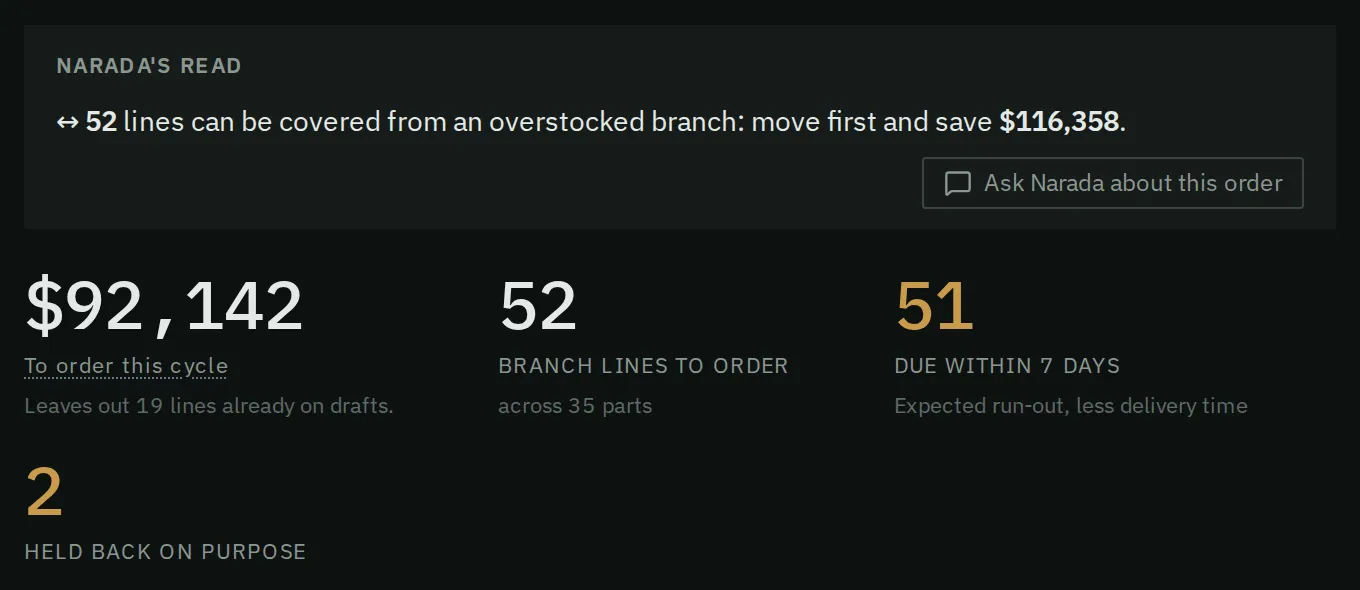
One line: what to do first, and a button to ask Narada about the whole order.
Narada’s read tells you two things, when they apply:
- how many lines are out of stock or run out within 3 days. Order these first;
- how much you would save by moving stock from one branch to another before you buy.
Press Ask Narada about this order to have Narada walk you through the week’s order: what to order first and why, what is held for your check, and what you can move instead of buying. The answer opens in the Narada panel, and you can ask follow-up questions there.
Under it, four big numbers give the totals: the value to order, the number of lines, how many are due within 7 days, and how many Narada held back on purpose.
The value to order is what the purchase orders will cost. It can be less than the order lines add up to. A part ordered at several branches goes on one purchase order line, so the supplier’s minimum is bought once, not once per branch. When that happens, a note under the figure says how many parts it affects, and each of their lines says “Shared PO line: 500”; hover it for the branches and the cost.
The filters
Section titled “The filters”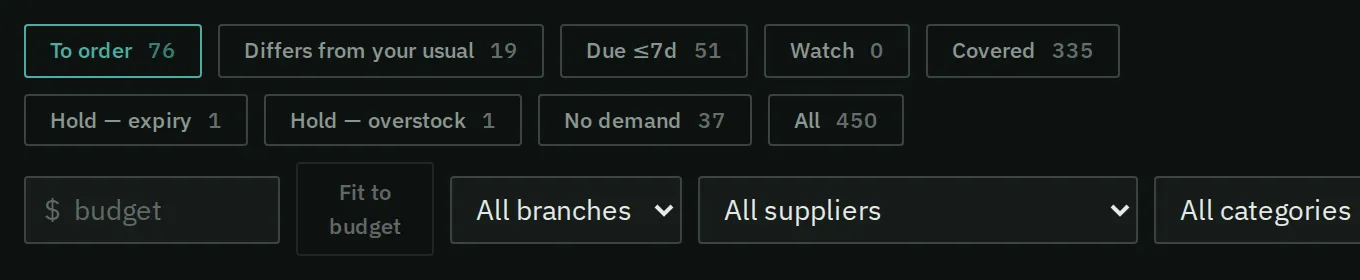
Each button shows how many lines it holds. The page opens on To order.
The buttons you will use most:
- To order: the lines to buy now. Its count matches the list it opens, including lines held as unusually large.
- Differs from your usual: lines you are about to order where Narada’s quantity is far from what you normally order. Check these first. A part that needs nothing is never listed here.
- Due ≤7d: lines that need ordering within a week.
- No demand: parts with no sales rate to size an order from. The Status column says why: Only sold as special orders, Never sold at this branch or No sales lately.
- Hold: lines Narada did not put in the order on purpose, for example because buying would leave you with too much stock.
- Non-stock: Narada would buy it: parts your ERP marks non-stock, so you only order them when a customer asks, but that sell often enough at that branch for Narada to keep some on the shelf. Each line says how many times customers bought it in the past year and what stocking it would cost. Its order quantity shows the amount Narada would stock, in amber, for example “6 to stock”. To start stocking one, tick it. The tick starts at that amount.
The small dot after demand
Section titled “The small dot after demand”A small dot after a line’s demand per day shows how far to trust that part’s forecast. Grey means the forecast is still earning trust. Teal means it is established. No dot means the part sells too rarely to forecast well. The dot is never red: a part that sells now and then is not a mistake.
Build by supplier
Section titled “Build by supplier”A folded section that groups the order by supplier. Each supplier’s card shows the lines and their value, the lead time they promise and the one Narada measured, and whether the order clears their minimum and free-freight level. Open it before you build. If a supplier’s lines are already on a draft purchase order, its button reads Lines already on a draft PO and is greyed out. Finish that draft on the Purchase Orders page.
Transfer before you buy
Section titled “Transfer before you buy”A folded section that only appears when another branch has more of a part than it needs. It says how many order lines could be covered by moving stock instead of buying. Apply (or Apply all) takes those quantities off the order. Narada does not move the stock. You do that in your ERP.
The list
Section titled “The list”One row per part per branch. Each row shows what you have on hand, how many days that lasts, when to order by, how many to order and what it costs. Click a part’s name, or Show, to see exactly how Narada worked out that line.
Order by is how many days you have to place the order before you would run out, on the sales Narada expects, allowing for the supplier’s delivery time. A line can be on the list with days still showing there. It is on the list because it fell below its reorder point, and the reorder point also keeps a safety buffer and covers the days until your next check. Hover the small circle next to Order by for the same explanation.
A line already on one of your orders shows an amber note: “On draft PO-…” or “On PO-…, placed, not in your ERP file yet”. A draft a week or more old says its age, for example “On draft PO-…, 22 days old”. The note does not change the suggested quantity, because a draft is not yet an order. It is there so you do not order the same item twice: Select all and Build by supplier leave out a line a draft already holds. Tick it yourself if you really want it on a second order. If the draft is already in your ERP, press Placed in my ERP on it (see Tell Narada what you did).
How do I build this week’s order?
Section titled “How do I build this week’s order?”- Open Order → What to Order. Read Narada’s read first.
- If a red unusually large banner shows, press Show them. Check those lines before anything else. Each one shows, in amber, the safe amount Narada suggests instead (for example “24 suggested”). Hover it to see what the engine first proposed. Ticking the line starts at the suggested amount. A line that reads “check” has no safe amount: ticking it starts at 1, so type the amount you agree with the supplier.
- Click Differs from your usual. On each line, press Show and read why. Either Narada knows something you don’t (sales are rising, a supplier is running late), or you know something it doesn’t (a promotion, a lost customer). Change the quantity where you disagree.
- Open Transfer before you buy, if it shows. Press Apply on the moves you will really make. Then arrange the move in your ERP.
- Open Build by supplier. For each supplier, check the order clears their minimum.
- Tick the lines you want and press Build PO.
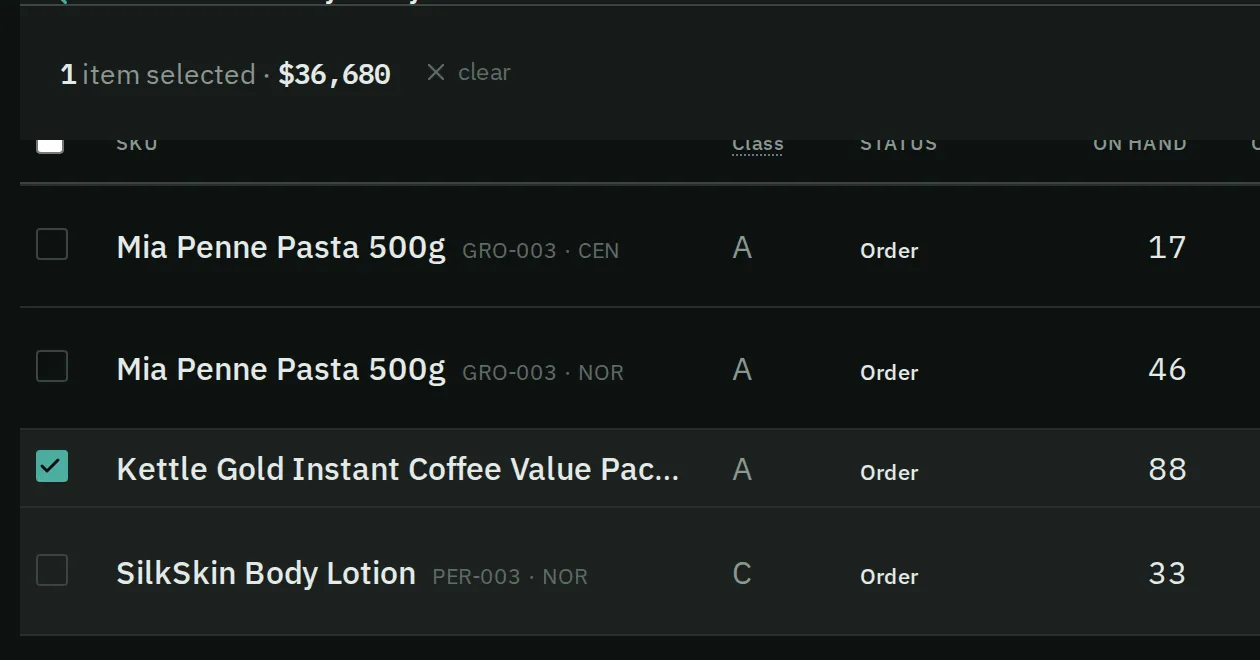
Tick a line. The bar above the list shows how many lines you picked and what they cost, priced the way the purchase order will be.
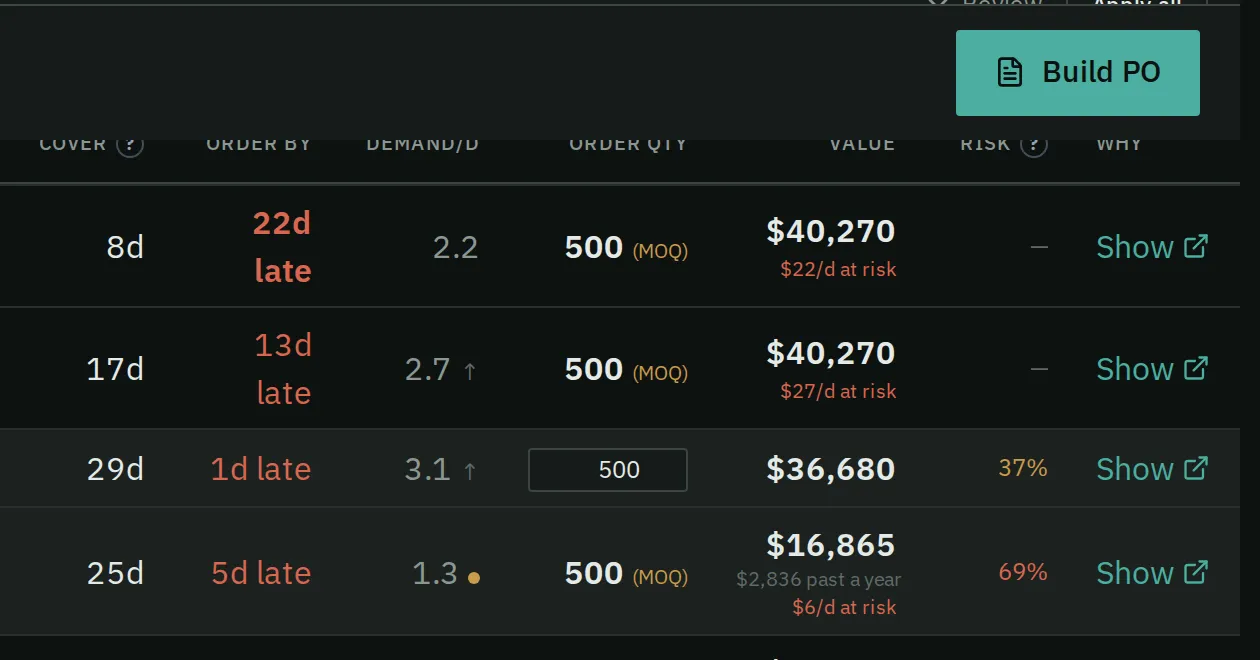
On a ticked line you can change the quantity. When you are happy, press Build PO at the right end of the bar.
How do I know it worked?
Section titled “How do I know it worked?”While Narada builds, the button reads Drafting…. On a big list this can take up to a minute, so don’t press it again. Narada makes one draft purchase order per supplier and opens the first one. The drafts have not gone anywhere yet. You check and edit each one on the Purchase Orders page, then add it in your ERP.
If a part you ticked is already on one of your open drafts, Narada drafts nothing and names the draft, for example “HV-PIP-4574 on PO-…”. Edit that draft instead, or delete it and build again. This keeps a part off two drafts at once.
What if cash is tight this week?
Section titled “What if cash is tight this week?”- Type the amount you can spend in the budget box.
- Press Fit to budget.
- Narada ticks the most important lines that fit and tells you what it left out and what that is worth.
- Check the ticked lines, then press Build PO.
Fit to budget only ticks lines. It does not order anything.
How do I put Narada’s reorder points into my ERP?
Section titled “How do I put Narada’s reorder points into my ERP?”Press Reorder points at the top of the page. You get a spreadsheet (CSV) with every part’s reorder point and safety stock. Import it into your ERP, and your ERP’s own reorder alerts will use Narada’s numbers.
How often should orders be sized for?
Section titled “How often should orders be sized for?”This is set on the Your Numbers page, under How Narada times your orders. What to Order only names it, in the grey line under the title. It decides how high Narada sets each part’s reorder point and how big it makes each suggested order.
- On a set day each week (the safe default): pick this if you look at this page about once a week. Narada sizes orders to cover the wait for delivery plus the days until your next visit. The reorder point sits a little higher too, because a part just above it will not be seen again until then.
- Whenever a part needs it: pick this only if you order the moment a part drops below its line. It holds less stock, and it is riskier if you then don’t look for a week.
- Per supplier, from your cost per order: Narada picks how often to order from each supplier from what each order costs you. It needs your cost per purchase order first.
Common questions
Section titled “Common questions”Why did some of my ticked lines disappear?
When Narada’s number for a line changes after you ticked it, usually overnight, the tick is cleared. A note above the list says how many. Tick the line again to use the new number. This stops an old quantity going onto a purchase order without you noticing.
Why does the page say “Updating after a recent change”? Something the list depends on just changed: you uploaded a file, changed a setting, marked an order placed, or answered a move. Narada works out the new list in the background, usually within a minute. Until then you see the last list, with the time it was made. Lines you just acted on read Updating and can’t be ticked, and the Orders desk and Export as drafted leave them out until the new list is ready. The page switches to the new list by itself. Other pages that use the list (Cash, the CSV download, the assistant) also show the last list meanwhile, without the note.
Why is a line on the list when I still have stock? Your stock will run below the reorder point before a new delivery can arrive. Press Show on the line to see the working.
Why is the order bigger than what I need? The supplier’s minimum order or order multiple (the batch size they sell in). If that would leave you with far too much, Narada holds the line under Hold — overstock instead and shows what buying it anyway would cost. Press Show on the line: the “Minimum vs lost sales” step says how many a day the part must sell for the minimum to pay, next to the pace Narada plans on. If you know it sells slower than that, the minimum does not pay.
Does Narada place the order for me? No. You build drafts here, download them from the Purchase Orders page and add them in your ERP. Your ERP sends them to the supplier.
What does “Move 49 from CEN” mean on a line? A supplier’s minimum would have left that branch with far too much stock, and another branch has enough spare to cover what this one needs. So Narada suggests moving it instead of buying the minimum. The line stays in To order and Due ≤7d until the stock arrives. Move it in your ERP, then press Moved it under the line. It then reads Moved 49 from CEN under Covered, and Narada stops suggesting it until your stock file shows the stock. If that branch can’t send it, press Can’t move: Narada tries another branch with spare stock, or brings the buy back. To buy the minimum instead, tick the line.
Does pressing Apply on a transfer move the stock? No. It only makes the order smaller. You move the stock in your ERP.
Do Narada’s reorder points match my ERP’s min and max? Partly. Narada’s reorder point is about the same as your min. The Reorder points download has the reorder point and safety stock. It has no max column yet. If you load your max values, tell us and we will add one. Until then, keep the max you already use in your ERP.
Why do the totals disagree, for example 79 lines here and 86 there? The To order count matches the list it opens. The branch lines tile counts only lines to buy, not held ones. Supplier purchase order lines group one part across branches. So those numbers can differ honestly. To order this cycle and the branch lines tile leave out lines already on one of your open drafts, so they match what you would still draft. The note under the total says how many it leaves out, for example “Leaves out 8 lines already on drafts”.
What this page does not do
Section titled “What this page does not do”- It does not send orders. You add them in your ERP, and your ERP sends them.
- It does not create stock transfers in your ERP.
- It does not use supplier price breaks (cheaper per unit above a quantity). It does use the supplier’s minimum order quantity, order multiple (the batch size they sell in, for example boxes of 12), minimum order value and free-freight level.
- It does not know about supplier holidays or shutdowns.
- It does not fill containers or pallets by weight or volume.
- Purchase Orders: check, edit and download the drafts you just built.
- Orders: late deliveries and orders waiting for a decision.