
A finding
A finding is one problem, with everything you need to decide and act on it. It says what is wrong, how much it costs, and why it happened. It shows how to check it in your own ERP, and it has the buttons to act. A finding opens over the page you came from. Close takes you back.
Where to find it: press Review on any row in Today, or click any row in Issues.
When should I open this page?
Section titled “When should I open this page?”When you are working through Today or Issues, and a finding needs a decision. Open it when a number looks big, or when the same supplier keeps appearing. Owners use Check it in your ERP and How this was computed to trust a number before acting on it.
What am I looking at?
Section titled “What am I looking at?”The top of the finding
Section titled “The top of the finding”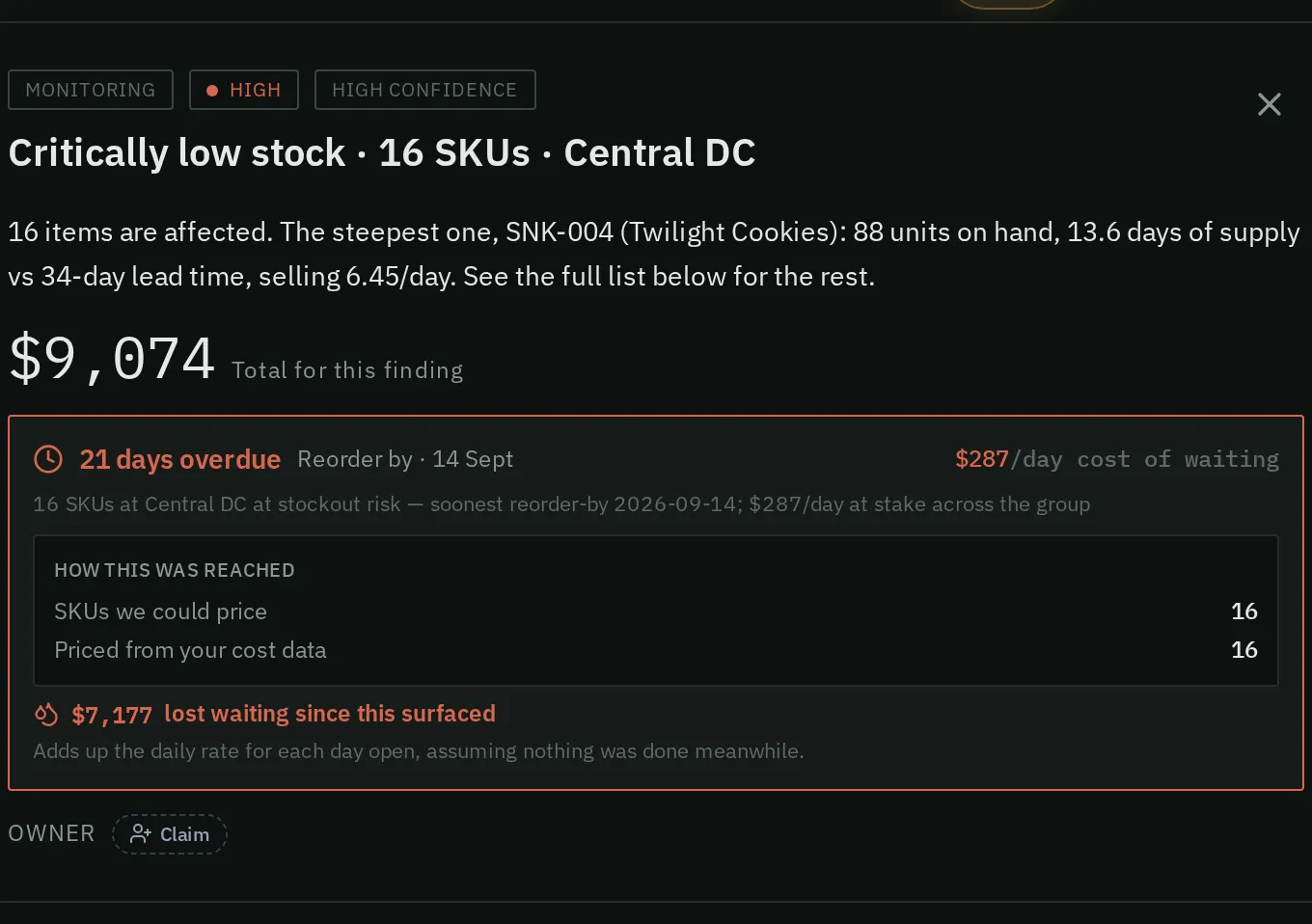
The top of a finding: what is wrong, the money at stake, how overdue it is, and the Claim button.
At the top you see the finding’s status, its severity and its confidence. Under that is the title, and a one-line story of what is happening.
Next come the owner line, with Claim, and Ask Narada about this. The action buttons sit below that. Then you see Why it matters and Suggested next step, one sentence each.
The money and the clock
Section titled “The money and the clock”The amount is shown with the kind of money it is, such as a stockout risk. If the finding has a deadline, you see how far past it you are, worded by what the deadline was: “reorder-by date passed 23 days ago” means the date to reorder went by (it is not a late supplier order). A return window “closed”, a batch “expired”, and only a payment is “overdue”. You also see the cost of each day of waiting.
How this was reached says how many parts could be priced from your cost data. It also says what the total covers.
Lost waiting since this surfaced shows what the delay has already cost. This adds up the daily cost for each day the finding has been open. It assumes nothing was done in the meantime.
Check it in your ERP
Section titled “Check it in your ERP”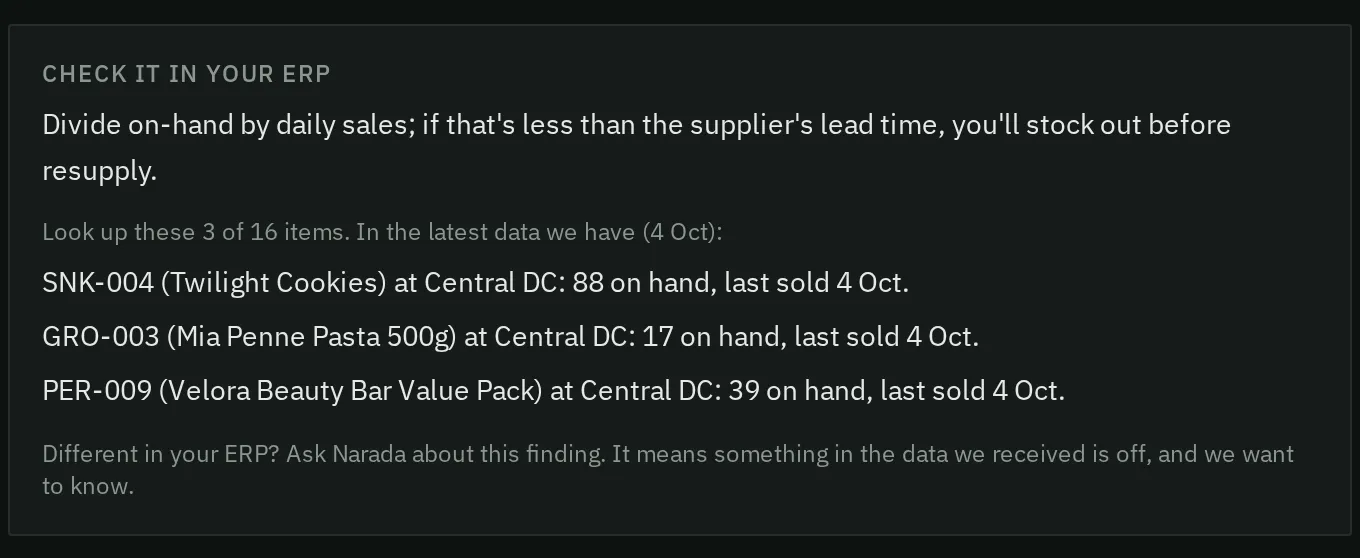
Check it in your ERP lists what to look up in your own system.
This block tells you what to look up in your ERP. It lists three example items, with their stock and the date of their last sale. The stock is dated, so you can see how fresh it is.
Narada’s overnight read
Section titled “Narada’s overnight read”When an investigation exists, you see a dated memo here. It describes what is happening, why, and the next step. How Narada worked it out shows the steps behind it.
Investigate again runs a fresh investigation using today’s data. There is a daily limit on how many you can run.
Shares a cause
Section titled “Shares a cause”If related findings share a cause, such as one late supplier, they are listed here with their money. Fixing the cause once can clear several findings.
How this was computed
Section titled “How this was computed”This block shows the formula, and the largest contributors to the total. The table keeps the twenty largest. The total above covers every part, and the page says so.
How do I decide what to do?
Section titled “How do I decide what to do?”- Read the title, the money, and Suggested next step.
- If the number surprises you, open Check it in your ERP and look up the items. If your ERP disagrees, press Ask Narada about this and say so. That means the data Narada received may be wrong.
- Choose an action. Press Draft PO if you want to order. Press Claim if you will handle it, so the team knows it is yours. Press Dismiss if it is not a real problem.
- If Shares a cause names a supplier, look at the related findings. One call to that supplier may fix several.
How do I claim or dismiss a finding?
Section titled “How do I claim or dismiss a finding?”- Claim puts your name on the finding, so the team knows it is handled. It saves straight away, with no confirm step. On someone else’s finding, you can press Assign to me or Unassign.
- Dismiss removes it from the list. It asks for a reason, and the reason is kept with your name.
- Reopen brings back a dismissed finding.
Dismissing does not fix the cause. A dismissed finding stays away until someone reopens it.
How do I draft a purchase order from a finding?
Section titled “How do I draft a purchase order from a finding?”- Press the Draft PO button. It names the supplier. It only shows when every part in the finding comes from that one supplier. A finding whose parts come from several suppliers has no button here: build those orders on What to Order.
- Press Confirm, or press Cancel to stop.
- Press Review & edit to open the draft.
Nothing is sent to the supplier. The draft waits on Purchase Orders until you add it in your ERP.
How do I know it worked?
Section titled “How do I know it worked?”After you confirm a draft, it appears on Purchase Orders. After you claim, the owner line shows who has the finding.
“Did you act on the … finding?”
Section titled ““Did you act on the … finding?””A finding that has gone away can show this question under the owner line. Narada asks it when it can’t confirm what you did: your next file shows no order or stock transfer that explains it, or the sign it saw is too thin to trust. Press Yes if you acted, so the result is credited to you. Press No if you did not act on it; the finding is then recorded as not credited. You can change your answer until the nightly run counts it. If you have not answered within 14 days, the finding is not credited. A view-only account sees the question but cannot answer it. To find these findings, open Issues and press Show them on the line “N cleared findings are asking whether you acted on them”.
Common questions
Section titled “Common questions”The memo says a different number from the title. Which is right? The title is today’s finding. The memo is dated, and it was written about the stock on that day. Press Investigate again for a fresh one.
Why does the table show only some of the parts? It keeps the largest contributors. The total covers every part, and the page says so.
What this page does not do
Section titled “What this page does not do”- It does not change anything in your ERP. A drafted purchase order is a draft until you send it.
- Dismissing does not fix the cause. The problem is raised again if it returns.
- The ERP check lists three example items, not every part in the finding.
- Today: the list ranked by what waiting costs.
- Issues: every open finding, searchable and sortable.
- Purchase Orders: the drafts you made from findings.