
Issues
Issues lists every finding in one table. Today and Brief pick the few that matter most. Issues is where you search, filter and sort all of them: by severity, by kind of problem, by branch, or by money.
Open a row to see the finding and act on it. Nothing on this page changes anything. You act inside the finding.
Where to find it: Issues is the third item in the top menu. Its open count shows as a badge.
When should I open this page?
Section titled “When should I open this page?”Weekly, and whenever someone mentions a finding. Planners search for a part or a supplier here. Branch managers check their branch’s findings. Owners look at what all the timed findings cost each day, and what has been resolved or dismissed.
Every open finding is listed here. The count matches the one on Brief.
What am I looking at?
Section titled “What am I looking at?”The top of the page
Section titled “The top of the page”The header shows how many findings you are looking at, out of the total. It also has Past investigations, which opens the record of nightly memos, and How these numbers work.
The two figures
Section titled “The two figures”Open issues shows the count of open findings, split by severity.
Costing you / day shows what waiting costs each day, across every timed finding. It counts all of them, not only the rows on screen.
The domains
Section titled “The domains”Chips show each area with its count, such as stock health, forecast health, patterns and procurement. Press a chip to show only that area. Press it again to clear it.
The filters
Section titled “The filters”- A search box, Search issues…, filters rows by text.
- Severity buttons: All severity, High, Medium and Low.
- A status menu: Open, Resolved, Dismissed, or all of them. Open is the default.
The table
Section titled “The table”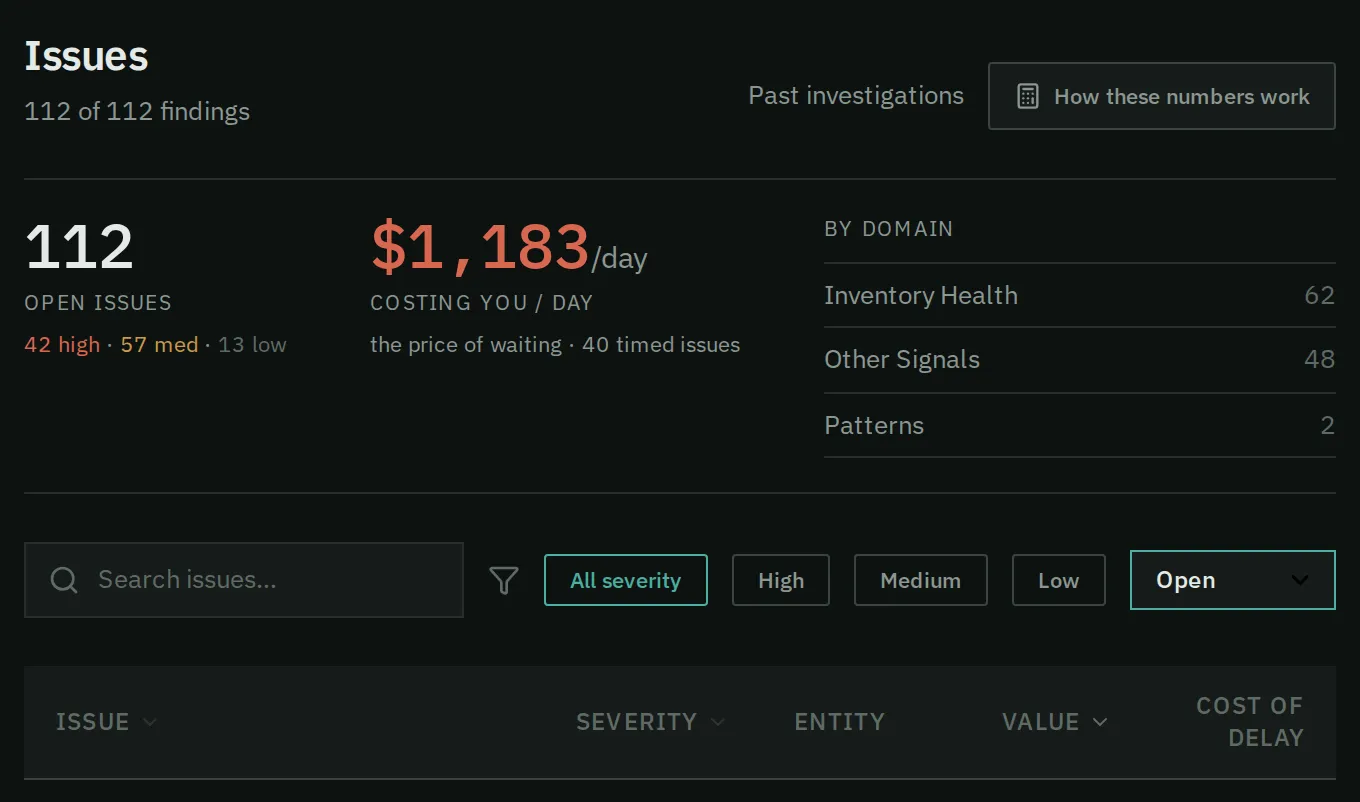
The top of Issues: the open count, the daily cost, the filters and the columns of the list.
Each row shows:
- Issue: what is wrong.
- Severity.
- Entity: the part, the branch, the customer, or “whole business” for a finding that spans branches or the whole business.
- Value: the money involved.
- Cost of delay: the cost of each day. If the finding has a deadline, you also see how many days are left, or how far past it the finding is. For a reorder-by date it reads “reorder-by passed 28d ago”. A dash means there is no deadline.
Findings with no money show “Not priced” and sort to the bottom.
How do I find the findings that matter most?
Section titled “How do I find the findings that matter most?”- Press High under severity. Then press the Value heading to sort by money.
- Open the top rows and act from each finding.
- To check one part or supplier, type its code or name in Search issues….
- To see one area, press its chip. Press it again to clear it.
- Open the status menu and choose Resolved to see what was closed.
- If a line says “N cleared findings are asking whether you acted on them”, press Show them. Open each row tagged asks you and answer Yes or No. Your answer decides whether the result is credited to you. See Tell Narada what you did.
How do I open a finding?
Section titled “How do I open a finding?”Click a row. The finding opens over the list. Press Close, or the Esc key, to go back. Your filters stay as they were.
To see a part’s details without leaving the list, press the part’s code in the Entity column. Its panel opens.
What if a finding is “Not priced”?
Section titled “What if a finding is “Not priced”?”Some findings are about risk that has no honest dollar figure yet. A high-severity finding can still be “Not priced”. It still counts as open. Filter by severity as well as sorting by value, so these do not get lost.
What if a row names a part, and another names a count?
Section titled “What if a row names a part, and another names a count?”A finding about one part names the part. A finding about several parts gives a count instead, such as “10 SKUs”. Open the row to see the parts.
Common questions
Section titled “Common questions”Why is a finding with high severity at the bottom? It has no value yet, so it is “Not priced”. Sorting by value puts unpriced findings last. Filter by severity to find it.
Do my filters stay when I come back? Only in the address bar. Bookmark a filtered address to keep it.
What this page does not do
Section titled “What this page does not do”- It does not act on findings. Claiming, snoozing, dismissing and drafting happen inside the finding.
- It does not save your filters, except in the address bar.
- It does not change anything in your ERP.