
Clear Stock
Clear Stock shows the stock that is not selling. Dead stock is stock that has not sold for a long time. For each part, the page suggests what to do. You can send it back to the supplier for credit, or mark it down and sell it off.
The page puts a money figure on what is stuck, what keeping it costs each month, and what a return would get back. It then drafts the return request for you to check and send from your own email.
Where to find it: Stock → Clear Stock in the top menu.
When should I open this page?
Section titled “When should I open this page?”Once a month, or when cash is tight.
Owners and finance check how much cash is stuck, and what returns would bring back. Procurement managers draft the return requests. Branch managers check their branch’s dead and overstocked parts. Sales and marketing check the Liquidate list before a promotion, and the batches that will expire before they sell.
What am I looking at?
Section titled “What am I looking at?”The four tiles
Section titled “The four tiles”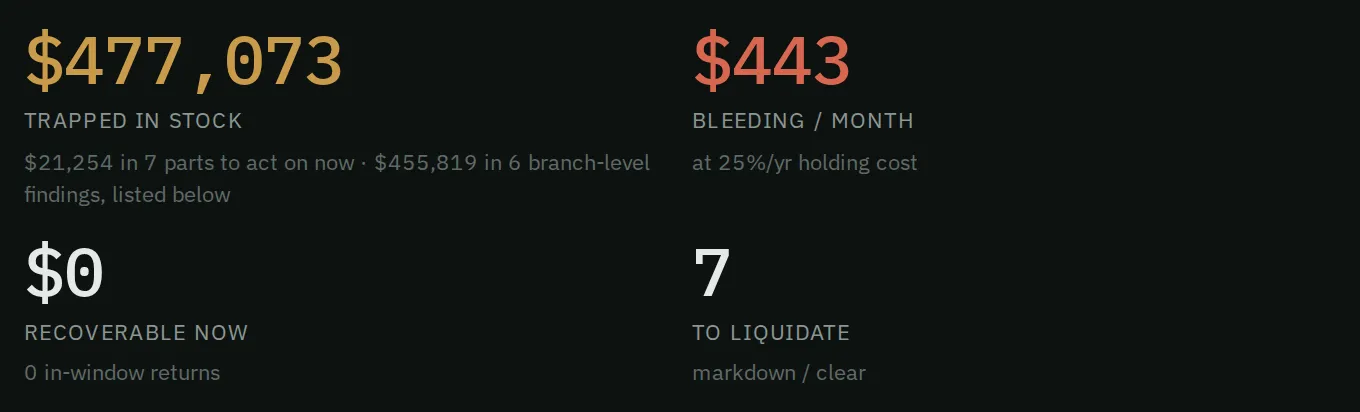
Four tiles show what is stuck, what it costs each month, what returns would recover, and what to mark down.
- Trapped in stock: everything Narada counts as stuck, the same figure as the Brief. The line under it splits it into the single parts you can act on now and the branch-level findings, which are listed under the table. Money in parts with no clearance action yet is named there too. (Before 2026-10-21 this tile showed only the single parts, and could read a few dollars beside hundreds of thousands in findings.)
- Bleeding / month: what holding this stock costs each month. Holding cost is what it costs to keep stock on the shelf, mainly the money tied up in it. The rate is set for your business.
- Recoverable now: what supplier returns would give back. Narada counts a return only if it is confirmed, dated and inside the supplier’s return window. It assumes full credit at cost, shown “before any restocking fee”. A supplier’s restocking fee would reduce the real amount.
- To liquidate: the parts to mark down.
Return for credit
Section titled “Return for credit”Return for credit — draft the request has one button for each supplier. Each button shows the number of parts and their value.
Expiring soon
Section titled “Expiring soon”This section lists batches that expire within 90 days, and how fast each one sells. Won’t clear is the number of units that will not sell before their date at the current pace.
- Won’t clear only shows only those batches.
- Urgent (≤30d) shows batches that expire within 30 days.
- Clear them removes the filter.
The list
Section titled “The list”
Filter the list by what to do with the stock, and by branch.
Filter the list with All, Returnable, Liquidate fast or Liquidate. You can also filter by branch.
Each row shows the part, its branch and supplier, the recommended action, the trapped value, the recoverable value, and the holding cost each month. Press Show to see why Narada recommends that action.
Export downloads the rows you can see as a spreadsheet file (CSV).
Branch-level findings
Section titled “Branch-level findings”Under the table, each row is one finding that covers many parts at once, for example “Dead stock (1yr+) · 346 parts” at one branch. It shows how many parts, how much money is trapped in them, and its largest parts. Press a part’s name to open its page. A finding has no single action here, so use it to find which parts to look at. The branch menu narrows this list too.
How do I send a return request?
Section titled “How do I send a return request?”- Read Trapped in stock and Recoverable now. The gap between them is stock with no return route. That stock has to be sold off.
- Under Return for credit — draft the request, press the button for a supplier.
- Read the draft, including who it goes to, before you send it.
- Press Open in my email. Your own mail app opens with the draft filled in, so it goes from your company address. Or press Copy and paste it into your email.
Do the returns first. They usually get back the most cash.
How do I plan markdowns for expiring stock?
Section titled “How do I plan markdowns for expiring stock?”- Open Expiring soon.
- Press Won’t clear only to see the batches that will not sell before their date.
- Plan a markdown for those batches before their date. Start with Urgent (≤30d).
How do I agree prices for liquidation?
Section titled “How do I agree prices for liquidation?”Filter the list to Liquidate. Agree prices with your sales team. Press Export to share the list.
Narada does not set markdown prices. Liquidate tells you what to clear, not the price to clear it at.
How do I know it worked?
Section titled “How do I know it worked?”Check the list next month. The parts should be gone. If the same parts keep coming back, the buying is the cause. Look at them on What to Order.
Common questions
Section titled “Common questions”Why does the top figure not match the table? The table lists single parts you can act on now. Branch-level findings cover many parts at once, so they sit under the table instead. The top figure adds both, and it is the same figure as on the Brief.
Why is “recoverable” blank on some rows? Either the action is to liquidate, or Narada cannot date the purchase inside the supplier’s return window. It shows nothing rather than a guess.
How does Narada know a supplier’s return window?
From Returns within (days) on the supplier’s card in Your Numbers, or a return_window_days column in your suppliers file. Only units delivered inside that window count.
Where is the restocking fee? There is no field for it. Values are “before any restocking fee”. Ask the supplier. The return request email asks them too.
Does the holding cost mean I pay that money? No. It is the price of waiting. It assumes you do nothing about the stock.
What this page does not do
Section titled “What this page does not do”- It does not send returns or change stock. The return request stays a draft until you send it from your own email. The stock leaves when your warehouse ships it.
- It does not set markdown prices.
- It does not record the supplier’s answer to a return.
- What to Order: buy less of the parts that keep coming back.
- Cockpit: see how much cash these moves would free.