
Settings
Settings holds your team, your plan, the purchase order exports, your alerts, your account, and a record of changes. It has seven tabs. They cover your team and their rights, your plan, the file your ERP imports, your alerts, your account, and who changed what.
The numbers Narada plans with, such as costs, service targets and supplier minimums, are not here. They live on Your Numbers.
Where to find it: Settings is in the top-right links. The tabs are Team, Plan & usage, Business, Purchase orders, Notifications, Account and Change history.
When should I open this page?
Section titled “When should I open this page?”The owner opens it on the first day, and again when people join or leave. A buyer opens it once, to set the purchase order layout. Everyone checks the alerts once. Finance opens the plan tab when a billing question comes up.
What am I looking at?
Section titled “What am I looking at?”Each person has their email and four switches: Draft purchase orders, Draft emails, Edit business settings, and Act on findings. Act on findings covers dismissing, reopening, claiming and muting. A viewer cannot do those.
The owner’s row is marked OWNER, and has no remove button. For everyone else, the owner can apply a role preset:
- Viewer: sees everything, changes nothing.
- Operator: drafts purchase orders and emails, and acts on findings. No settings access.
- Admin: everything except team management and the workspace key.
A Re-invite button appears while an invite is pending. A remove button sits at the end of each row.
At the bottom are Name, Email and Invite teammate.
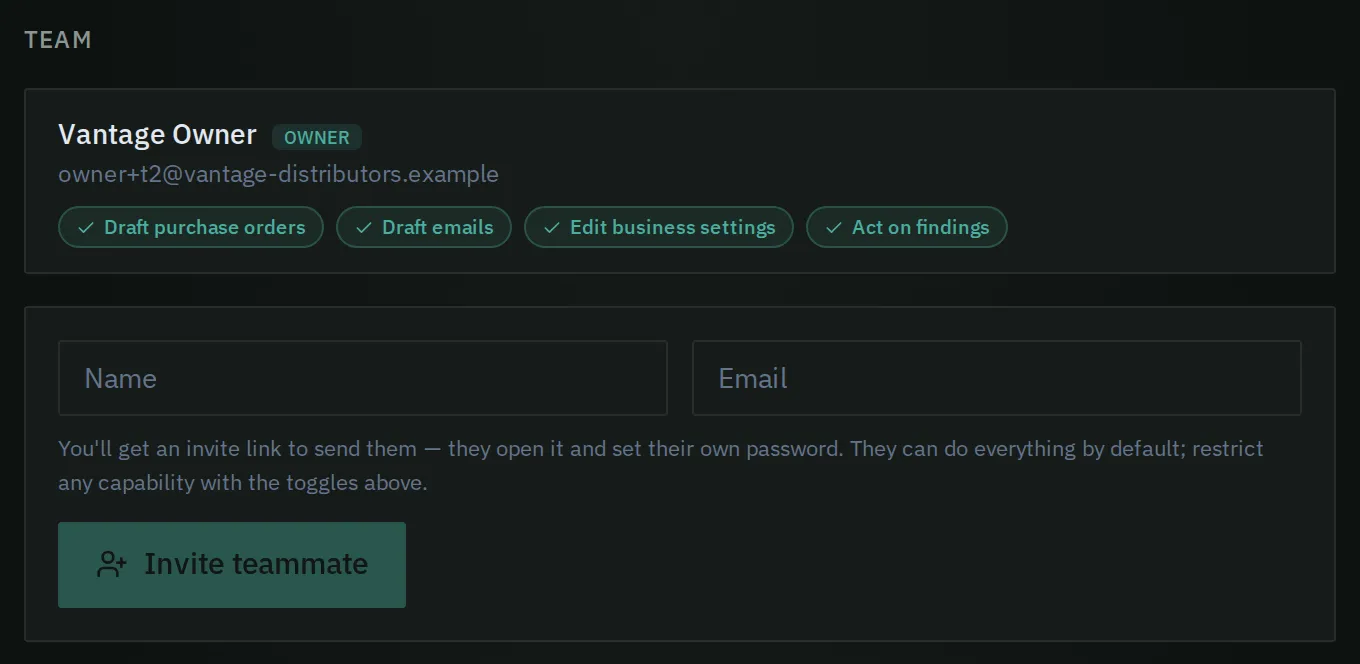
Each teammate has permission switches, and the invite form sits at the bottom of the list.
Plan & usage
Section titled “Plan & usage”This shows your current plan and its monthly price. A usage line shows how many active parts you have, and any limit your plan sets. To change plans, email hello@naradaos.com.
If your billing runs through the card portal, a Manage subscription button opens it.
Business
Section titled “Business”This tab has one line that points to Your Numbers, where your business numbers now live.
Purchase orders
Section titled “Purchase orders”This tab lists the layouts your purchase orders export in. Each layout has a name, a format, a default marker, and Edit and Delete buttons.
Upload a template reads the column names on the first line of a CSV file your ERP imports. It opens the editor with a suggested layout, keeping your column names and their order. Columns it cannot place are left out.
New layout opens the editor. You set the name, file type, date format, delimiter, line ending, encoding and whether to include a header row. Then you order the columns. A preview shows one row.
With no layouts saved, exports use Narada’s own column names and order.
Notifications
Section titled “Notifications”- Order warnings: one email when a part at a branch enters the last three days in which you can still order before it runs out. It lists what is left, the supplier’s lead time and the suggested quantity. Each part is warned once, then not again for 14 days.
- Recipients: the whole team, or the owner only.
- Alert bundling: how many similar alerts build up before they fold into one summary. Choose a number between 5 and 1000.
- Board display: Show “Narada suggests” card shows or hides the gold card on the home page. This setting is kept in your browser only.
Account
Section titled “Account”This tab holds the company name and the workspace number. You will need the workspace number when you contact support.
Workspace timezone sets when the overnight run and the morning briefing land for your team.
Workspace API key has a Rotate key button. You can change your password here too. Recent activity lists the pages you opened, newest first.
Change history
Section titled “Change history”This tab lists changes made on screen: who made each one, when, from which screen, and the old value. You can download it as a CSV file. Changes that come in through file uploads are not listed here.
How do I invite a teammate?
Section titled “How do I invite a teammate?”- Open Team. At the bottom, type the Name and Email.
- Press Invite teammate. An invite link appears, with a Copy button. The link lasts seven days.
- Send the link. They open it and set their own password. They can do everything by default.
- Press a role preset, or switch each permission on or off, to set what they may do.
How do I set up my purchase order layout?
Section titled “How do I set up my purchase order layout?”- Open Purchase orders. Press Upload a template, and choose a CSV file your ERP already imports.
- Check the suggested layout. Narada matches it to your column names.
- Press Save layout. The first layout you save becomes the default. To change the default later, press Set as default on another layout.
- Or press New layout to build one yourself. Set the columns in the order your ERP needs.
How do I change my alerts?
Section titled “How do I change my alerts?”Open Notifications. Switch Order warnings on or off. Choose who gets them under Recipients. Set Alert bundling to suit your team.
How do I rotate the workspace key?
Section titled “How do I rotate the workspace key?”On the Account tab, press Rotate key, then Yes, rotate. The new key shows once. Press Copy to keep it. This browser is updated for you.
Common questions
Section titled “Common questions”A teammate cannot change settings. Why? The owner switches on Edit business settings for them on the Team tab, or applies the Admin preset.
My overnight run happened in the evening. Why? Check Workspace timezone on the Account tab. A new account starts on UTC, so set your own timezone.
Where do I set supplier minimums and costs? On Your Numbers, not here.
Can I change my plan here? No. Email hello@naradaos.com.
Where do I connect our email so Narada can send? You don’t. Narada never emails a supplier or a customer. Email drafts have Copy and Open in my email buttons, so they go from your own company address.
Who changed a number? Open Change history. It shows who, when, from which screen, and the old value, for changes made on screen. Changes that came in through a file upload are not listed. For those, check the file you sent.
When does the nightly run happen? What if my export is late? It runs at night in your workspace timezone, 2am by default. It uses whatever data is loaded and does not wait. If your last sales or stock file is more than 8 days old, Today warns you, and Narada’s team is alerted.
What this page does not do
Section titled “What this page does not do”- It does not limit a person to some branches or suppliers. Permissions are broad switches, not rules per branch or per supplier.
- It does not change your plan. Email hello@naradaos.com.
- Your Numbers: the assumptions Narada plans with.
- Purchase Orders: the drafts these layouts serve.
- Today: the first page you see each morning.