
Purchase Orders
Purchase Orders is where a drafted order becomes a real one. Every purchase order Narada drafts lands here as a Draft. You check it, change what you want, and download it for your ERP. Your ERP sends it to the supplier, as always.
Narada never sends anything to your supplier.
Where to find it: Order → Purchase Orders in the top menu.
Which plan: drafting and changing purchase orders is part of Planner. On Analyst you can open this page to see the orders on their way to you, open one, and download it, but you cannot draft, change, delete or mark one as placed. The same goes for asking the assistant to draft or change one.
When should I open this page?
Section titled “When should I open this page?”After you build purchase orders on What to Order. Buyers check the drafts each day. Procurement managers use it to clear the drafts waiting for sign-off. Owners check it weekly, for the money promised to suppliers.
What am I looking at?
Section titled “What am I looking at?”The list
Section titled “The list”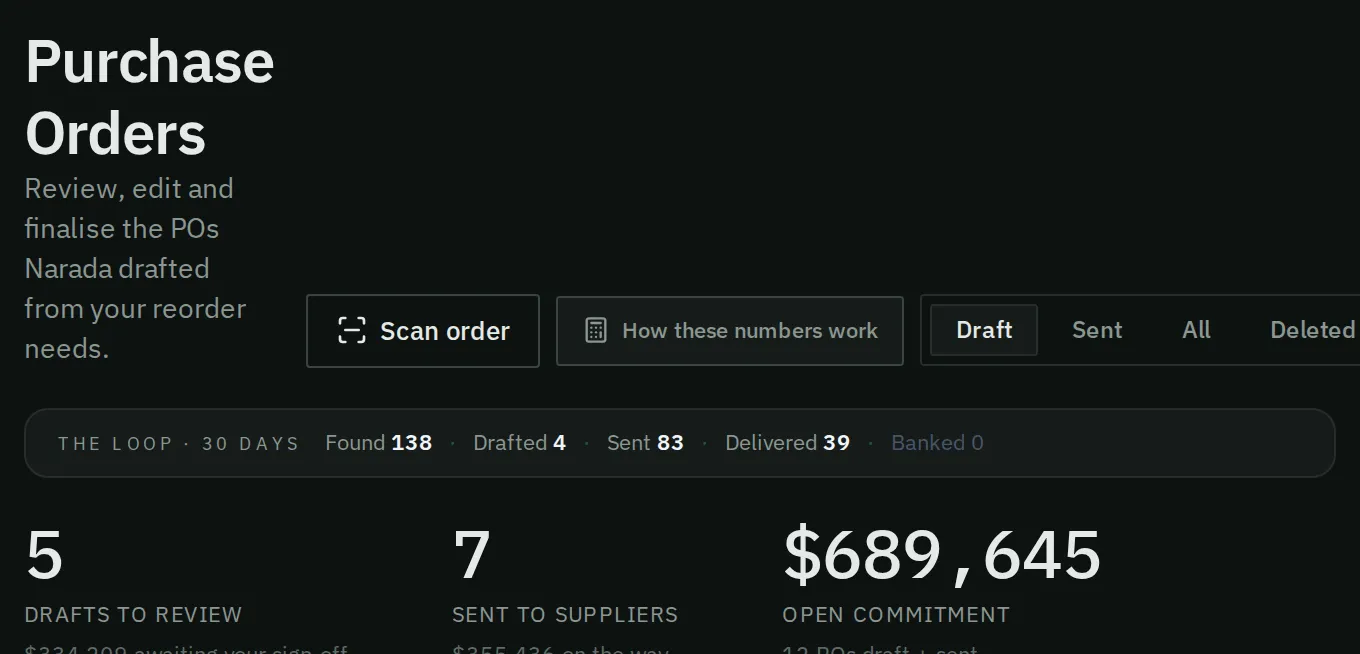
Purchase Orders opens on your drafts. The tabs switch to sent orders, and the totals sit below.
At the top are five tabs: Draft, Sent, Open in ERP, All, and Deleted. A PO you mark Placed in my ERP moves to Sent. Open in ERP lists the orders your ERP file shows as placed and not yet received. The Deleted tab keeps removed drafts so you can still read them.
Each row shows its Age (days since the order date) and its Due date. A due date that has passed on an order still on its way reads late, in amber.
Below the tabs is a strip for the last 30 days. It shows what was found, drafted, sent, delivered and banked.
Three tiles follow:
- Drafts to review: the drafts waiting for your sign-off, with their value.
- Sent to suppliers: the orders on their way, with their value.
- Open commitment: the drafts and sent orders together. This is the money promised to suppliers.
Each row shows the number, the status, the supplier, the line count and the value. A row shows a branch name when the order covers one branch only.
A purchase order
Section titled “A purchase order”Open a row to see the purchase order. At the top are its number, status, line count, arrival date and total.
Next is the supplier and Delivery by. The delivery date is worked out from the supplier’s past deliveries. You can change the supplier and the date while the order is a draft.
Below that are the supplier’s terms: currency, lead time, payment terms and order thresholds. The lead time you were promised is shown against the time they actually took.
The lines come last. Each line shows the part, its name, the quantity, the unit cost and the line value. The unit cost is what your supplier charges: your last price on a purchase order from that supplier in your ERP, or your catalogue cost if there is none. It never includes freight or duty. A line with no price is marked as unpriced. It is never counted as zero. The PDF shows it as “To confirm”.
How do I check and edit a draft?
Section titled “How do I check and edit a draft?”- Press Draft to see the drafts, then open one.
- Check the supplier and the Delivery by date. If the supplier has been late against promised lead times, the terms line says so.
- Read down the lines. Press the small icon by a line, Why this quantity, to see the working from the day the order was drafted.
- Change a quantity or cost. You can also press Remove line, or Add a line to search for a part.
- Press Save changes. For a change that needs a reason, pick a reason for each part, add a note if you like, and press Save with reasons.
- If an order is very large compared with the part’s sales, Narada asks you to confirm. Press I’ve checked, save it anyway only when you are sure.
How do I place a purchase order?
Section titled “How do I place a purchase order?”- Save any changes first. Placed in my ERP stays off until you do.
- Press Download for my ERP. Narada checks the order against today’s data, then the file downloads in your ERP’s import layout. Downloading does not mark the order placed.
- Add the file in your ERP. Your ERP sends the order to the supplier, as always.
- Back on the draft, press Placed in my ERP. Narada asks you to confirm. The order then counts as on its way.
- If a supplier wants a document, press Download PDF and send it from your own email.
Why won’t my order download?
Section titled “Why won’t my order download?”Narada stops the file only when it would put a wrong line in your ERP. The reason shows above the buttons.
- An old stock file. The branch’s newest stock file is older than usual: 2 working days for a branch that sends most days, 8 days otherwise. Send a new file, or answer OK to “Did you check this stock in your ERP today?” to download once. Narada records that you checked.
- A line with no branch. The draft was made before orders went one per branch. Delete it and draft again.
- No price on a line. Type the supplier’s price. If your ERP fills in prices itself, switch on My ERP fills in the price on lines left blank in Settings → Purchase orders.
- A quantity the supplier would refuse. Change it, or confirm in the editor that the supplier agreed. See Supplier rules.
- The part is already on another order at this branch: another draft, or an ERP order that arrived after this draft. Remove it from one of them.
- No supplier, or a supplier in another currency. Narada does not convert currencies.
Two things only warn, and the file still downloads. A line with no supplier item code gets a blank cell. A quantity that no longer matches the latest buy list says what Narada now recommends. The file’s name carries the date of the stock it was checked against.
The hint under the buttons sums it up: download the file for your ERP, add it there, then click Placed in my ERP.
If your ERP needs a fixed file layout, set it once. Press Configure export format. It opens Settings, on the Purchase orders tab. Every download after that uses it.
What happens after I mark it placed?
Section titled “What happens after I mark it placed?”- The order counts as on its way once its delivery date arrives in time.
- Your next ERP purchase order file confirms it.
- If your ERP gives the order its own number, the Orders page asks “same order, link them?”.
- If you send us ERP order files and none shows the order after about a week, it stops counting. The Orders page asks “Not in your ERP yet: was it placed?”.
- A goods received file closes the order once everything has arrived.
How do I delete a draft?
Section titled “How do I delete a draft?”Press Delete draft, then confirm. The page warns that this cannot be undone. The deleted draft stays readable under Deleted.
How do I know it worked?
Section titled “How do I know it worked?”After Save changes, the change appears in Edit history, with your name and the time. Edit history lists every change: what changed, from what, to what, when, and by whom.
After Placed in my ERP, the order counts as on its way. Your next ERP order file confirms it.
Common questions
Section titled “Common questions”The strip and the tile show different counts for sent orders. Which is right? Both. The strip counts orders that left draft in the last 30 days, including ones since delivered. The tile counts orders sent but not yet delivered.
Why does the reason on a line differ from the buy list? The order keeps the working from the moment it was drafted. The buy list is worked out again from today’s stock.
Can I undo a delete? No. The deleted draft stays readable under Deleted.
If I edit a quantity, will tonight’s run change it back? No. The nightly run never changes a draft. Your draft stays as you saved it.
Can I mark a purchase order as received? Not in Narada, by design. Receipts come from your ERP: the status or received quantity in your purchase order file, or a goods received file. A goods received file closes the order once everything has arrived.
What From and Reply-to address does my supplier see? None from Narada. Narada never emails a supplier. You send the order from your ERP or your own email.
What this page does not do
Section titled “What this page does not do”- It does not write the order into your ERP. You download the file and add it there.
- It never sends anything to your supplier.
- It does not read the supplier’s reply. Late orders and supplier questions are handled on the Orders page.
- Orders: late orders, and the supplier decisions behind these drafts.
- What to Order: the buy list that creates the drafts.
- Settings: the export layouts for your ERP file.