
Orders
Orders is the week’s buying, one card per supplier. What to Order shows every line. Orders shows every decision: supplier orders ready to sign, orders that need a choice from you, orders that need a number Narada does not have, and late orders you must confirm.
Decide once, on the card. Narada suggests the choices. You make them. The page does not contact any supplier.
Where to find it: Order → Orders in the top menu, or Open Orders on Today. This page comes with the Planner plan.
When should I open this page?
Section titled “When should I open this page?”Once or twice a week, on order day. Aim to clear every card. Planners open it when Today says there are late orders to check. Owners look at it before a big order goes out, to see what a supplier’s delay would cost each day, and what is held back.
What am I looking at?
Section titled “What am I looking at?”The top of the page
Section titled “The top of the page”Two buttons sit at the top. What needs me today? asks Narada what to order today and what needs you. See the full order book → opens What to Order.
Four counts sit below them: Suppliers checked, Ready to sign, Need a decision, and Need a number from you. A line under them adds the four up, so you can see where every supplier is.
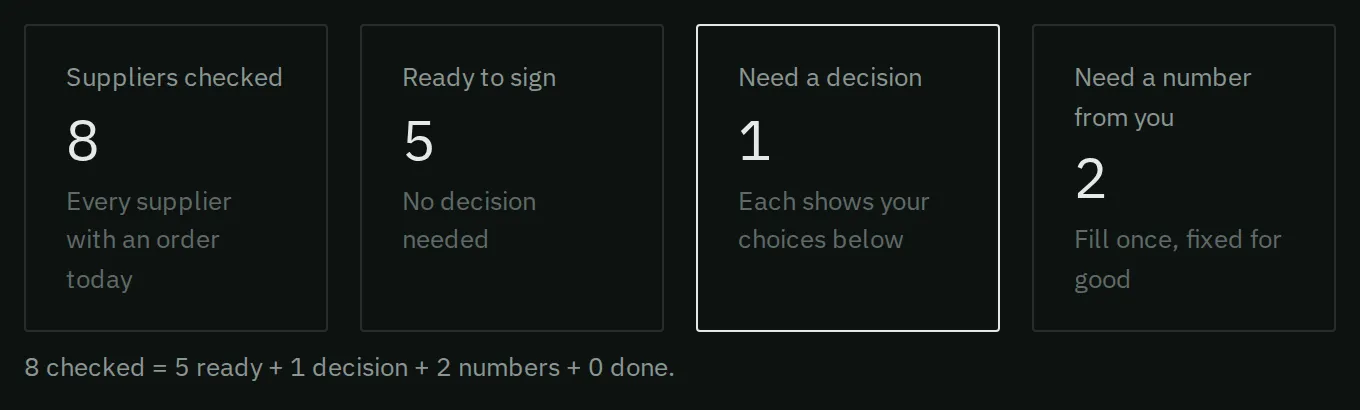
Four counts: suppliers checked, orders ready to sign, decisions needed, and numbers Narada needs from you.
Late orders
Section titled “Late orders”This section lists late purchase orders for parts that Narada suggests buying now. Each one says how late it is.
An order past its promised date still counts while it is within the time this supplier usually takes. Narada measures that time from the supplier’s past deliveries, the same time it uses to size your orders. Say a supplier quotes 21 days but usually takes 37. Its order still counts on day 30, as arriving on day 37. After that, Narada stops counting it and asks you. It also asks about any order more than one and a half times its quoted days old. Press Still coming with a date to count it again.
A purchase order line with no branch in your ERP file is listed here too, when you have more than one branch. Narada cannot tell which branch it is for, so it counts it at none. Add the branch to that line in your ERP. The next file puts it right.
The cards
Section titled “The cards”Cards sit in four sections: Needs a decision, Needs a number, Ready to sign, and Decided recently.
Each card shows the lines, their value, the due date, and how many branches it covers. It also shows the margin lost each day if this supplier’s parts run out.
Small chips on a card open the parts of the card that need a look:
- worth a look: lines whose past forecasts were often off. Each has See the math.
- runs out before delivery and late items: each with its fastest fix, or a note that no faster fix exists.
- Minimum order?: the supplier’s minimum order value is missing.
- differ from usual: the suggested quantity is far from what you normally order.
- rest on a guess: the line uses an assumed input, because yours is missing.
How do I answer a late order?
Section titled “How do I answer a late order?”- Find the order under Late orders.
- If the supplier said it is still coming, press Still coming. Pick the date, then press Save. The suggestion drops at once, so you do not buy twice.
- If you are not sure, leave it. If you know it will not arrive, press Not coming. Narada keeps suggesting the order as if it will not arrive.
- To change an answer, press Change. Show your answers lists what you have said.
How do I give a supplier’s minimum order?
Section titled “How do I give a supplier’s minimum order?”- On a card marked Needs a number, read the question What is the minimum order for the supplier.
- Type the amount and press Save. Or press They don’t have one. Or use the amount Narada reads from your past orders.
- Narada saves the minimum to Your Numbers. It uses it on every later order for that supplier.
How do I make draft purchase orders?
Section titled “How do I make draft purchase orders?”- Work through Needs a decision. Open the chips, and read worth a look and late items.
- For each late item, choose Ask the supplier to rush it, See transfer options, or Accept the risk. Choosing one records your decision. You still make the call or send the email yourself.
- For a held line, choose Order it anyway or Keep holding.
- Press Create draft PO when you are happy. If the order covers several branches, the button says how many drafts it will make.
- A very large order needs two clicks. The second button reads Click again to draft the full amount.
The drafts appear on Purchase Orders. Nothing has been sent. You check and edit each one there, then add it in your ERP.
Why are some of a supplier’s lines missing from its card?
Section titled “Why are some of a supplier’s lines missing from its card?”A line that is already on one of your drafts is never put on a second one, however old the draft is. The card says so, for example “6 lines are already on draft PO-261003-SUP05-01 (15 days old), so they are left off this order.”
If that draft is older than a week, the card adds “If that draft is in your ERP, open it and click Placed in my ERP.” Do that, or open the draft and order or delete it. When every line of a supplier sits on old drafts, the supplier shows only its drafted card, with “Still a draft after N days.” See Tell Narada what you did.
How do I place ready orders?
Section titled “How do I place ready orders?”- Under Ready to sign, press Export on one card, or Export all for every card. This marks the order exported, and downloads a file for your ERP once its checks pass. If one fails, the card says why. See Why won’t my order download?
- Or press Open on a decided order to check it on Purchase Orders.
- Add the file in your ERP. Your ERP sends the order to the supplier, as always.
- Press Placed in my ERP on the card. When it works, the card says “Placed in your ERP”.
What if my ERP gives the order its own number?
Section titled “What if my ERP gives the order its own number?”Narada asks on this page “same order, link them?”. Say yes, and the two count as one order.
If you send us ERP order files and none shows a placed order after about a week, it stops counting as on its way. This page then asks “Not in your ERP yet: was it placed?”.
Common questions
Section titled “Common questions”Why does Narada suggest buying as if my late order will not come? If it does not come, you run out. Tell Narada Still coming with a date, and the suggestion stops.
What does “rest on a guess” mean? The line used an assumed input, such as a default lead time, because yours is missing. Fill it in on Your Numbers and the guess goes away.
What does the money per day on a card mean? It is the margin you lose each day if this supplier’s parts run out.
Why does a card say only the owner or an admin can set this? Saving a supplier’s minimum changes every future order for that supplier. That is why it needs the Edit business settings right.
What is the cut-off date for a late order? The Order by column on What to Order shows it, as “Nd late” or “Today”. The card here shows “order by DATE” or “was due DATE”. The part detail shows Order by too.
What if the supplier’s minimum is too big for what I need? Narada rounds up to the minimum and the case size. It compares the cost of holding the extra stock with the margin you would lose, and says buy or hold. Press Show on the line: the “Minimum vs lost sales” step says how many a day the part must sell for the minimum to pay, next to the pace Narada plans on. If you know it sells slower than that, the minimum does not pay. Past a year, it notes “N years of stock”. It pulls lines that are nearly due forward to reach a supplier’s minimum order value. It can also draft an email asking for a lower minimum.
Does Narada see purchase orders I place directly in my ERP? Yes, through your purchase orders file, or Odoo. Open ones count as on order.
I did a transfer in my ERP. Will Narada count it twice? No. Narada never creates a transfer. When you move stock it suggested, press Moved it under the line on What to Order. Narada then stops suggesting that move, and does not count the stock that left as money saved. Narada cannot see stock while it travels between branches, so the receiving branch can look short until your next stock file.
What if I placed one order and not the other? Mark each one with Placed in my ERP only when it is in your ERP. If some fail, Narada names them so you can try again.
What this page does not do
Section titled “What this page does not do”- It does not contact any supplier. Ask the supplier to rush it records your decision. You make the call.
- It does not create stock transfers. See transfer options only records your choice. You move the stock in your ERP.
- It does not decide for you. A card stays in Needs a decision until you choose.
- What to Order: every line that needs buying, with its reason.
- Purchase Orders: check, edit and download the drafts.
- Your Numbers: the supplier minimums and costs this page relies on.