
Data
Data is where your ERP information comes into Narada. You start with one large load of your history. After that, small daily files arrive by email, or straight from Odoo.
The page also shows what has arrived, how fresh it is, and what each kind of file unlocks. Every file is checked before anything loads, and you confirm each load yourself.
Where to find it: Data in the top menu.
When should I open this page?
Section titled “When should I open this page?”On your first day, to load your history.
In the first week, your IT person sets up the scheduled emails from your ERP. After that, open the page when a number looks stale, or when a file fails.
Owners do the first load. ERP admins and IT set up the feed. Inventory planners check it when a number looks old.
What am I looking at?
Section titled “What am I looking at?”Before any data
Section titled “Before any data”On your first visit, you see a drop zone. It says to zip your export folder and drop it here, or click Browse. A single CSV, text, Excel or XML file also works.
Once your data is in
Section titled “Once your data is in”
Choose a currency label and your ERP at the top of the page.
- Currency sets the currency label on every figure. It does not convert any numbers.
- Your ERP changes the setup steps shown on the page. Pick your ERP from the list. If yours is not listed, choose Something else.
- The fill strip shows how many of the eleven kinds of file have arrived, with their names.
- Four tiles show data completeness, freshness (the date of your newest data), the time of the last import, and anomalies.
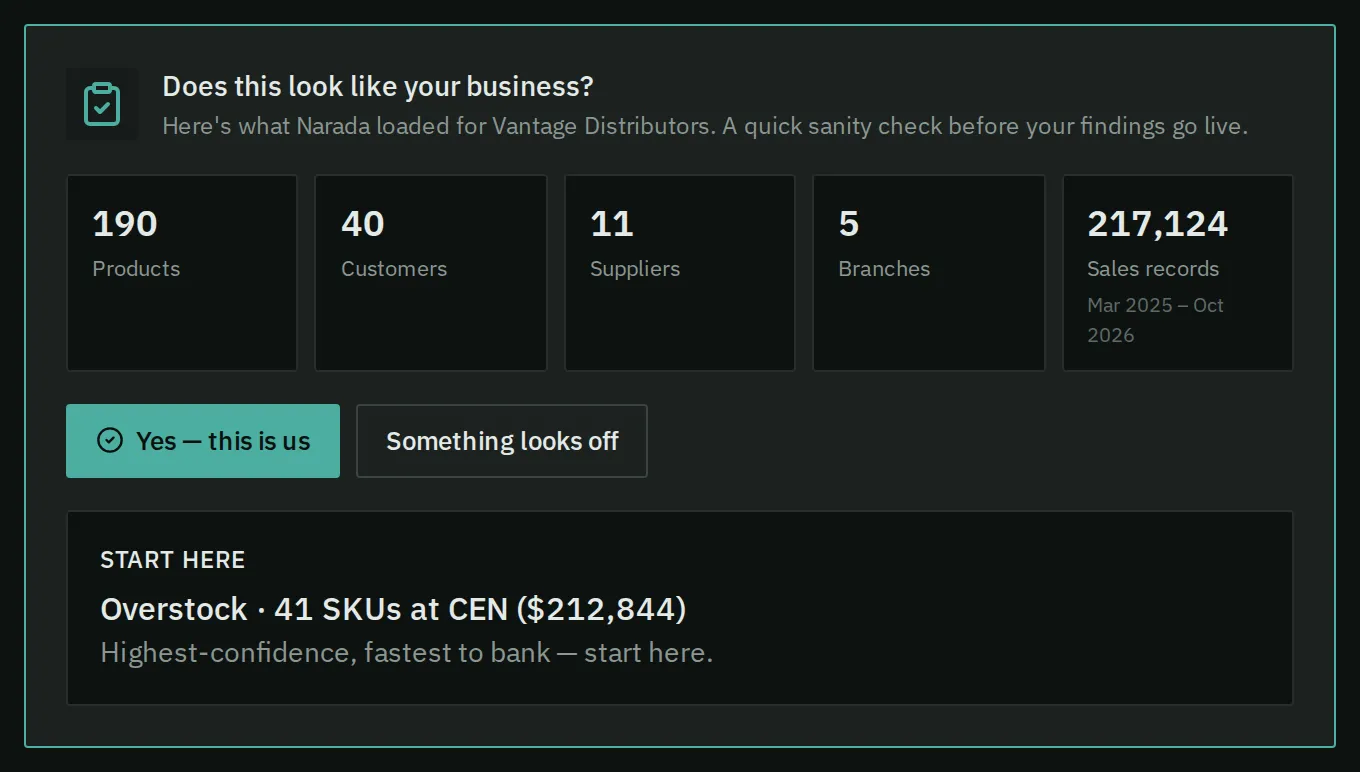
Before you confirm, the page shows what loaded, with two buttons to answer.
Does this look like your business? shows what loaded. Press Yes — this is us if the counts look right. Press Something looks off if they do not. Once you confirm, the card reads that the business is confirmed.
Keep it fed lists one email address for each kind of file. Each address has a copy button.
What’s in and what each unlocks lists each source. It shows whether the source is in (IN) or missing (ADD). It also shows the row count, the last date, and what the source powers. A missing source shows the columns it needs.
Upload history lists past uploads. Files still waiting for their column check appear here too.
How do I load my history?
Section titled “How do I load my history?”- Zip your export folder and drop it on the drop zone. Or click Browse, and choose the file.
- Read What’s inside. Each file is named. Narada never guesses branch or supplier lists, so pick Branches or Suppliers yourself where asked. Otherwise the file is skipped.
- Press Looks right — check columns. Press Cancel to load nothing.
- Check each file’s columns, one file at a time. Your columns may already match. Open a file to match a column, or press Skip this column.
- Answer any questions that appear. They can ask which branch a file belongs to. They can ask whether a figure is a line total or a unit price. They can also ask whether dates are day first, and whether to add unknown parts.
- Press Import to load that file. Bad rows can be downloaded.
- When every file is loaded, check the counts under Does this look like your business? Press Yes — this is us.
The first analysis then starts. It usually takes 10 to 20 minutes.
How do I know it worked?
Section titled “How do I know it worked?”The page shows a line that says your data is in, with the date of your latest sales. The confirm card reads Confirmed — this is your business.
If you reload the page in the middle, the files not yet checked wait on this page, under Check columns.
How do I keep the daily feed running?
Section titled “How do I keep the daily feed running?”- Copy the email address for each kind of file, from Keep it fed.
- Give the addresses to your IT person. Ask them to point each scheduled ERP report at its address. Or press Email this setup, after you type your IT person’s address, to send them the setup steps.
- After the first load, each daily file only needs the last few days.
How do I fix a file that failed?
Section titled “How do I fix a file that failed?”- Press Download these N rows to get the rows that could not load, as a spreadsheet file (CSV). Fix them, then upload the file again.
- Press Request manual review to ask the team to look at a file that failed.
- Press Check columns on any file that is waiting for its check.
- Press Something looks off, write a short note, then press Send to the team.
How do I change the currency?
Section titled “How do I change the currency?”Pick a currency under Currency. The page then shows that label on every figure. The numbers themselves are not converted.
Common questions
Section titled “Common questions”Do I have to upload every day? No. Set up the scheduled email from your ERP once, or connect Odoo. Each daily file only needs the last few days.
I refreshed in the middle of the column check. The files not yet checked wait on this page, under Check columns.
What happens if I upload the same lines again? A re-upload only fills in blank details. It does not change numbers already loaded. Any differences are listed for you.
Does changing the currency convert my figures? No. It changes the label only.
What this page does not do
Section titled “What this page does not do”- It does not convert currency. The currency is a label.
- It does not pull from ERPs other than Odoo. Other ERPs send files, by scheduled email or by upload.
- It does not change a number already loaded when the same lines come again with a different quantity.
- It does not guess which file is a branch or supplier list.