
Your Numbers
Your Numbers holds every assumption Narada uses to decide what to buy, in one place, in plain words. Each row says what it changes, what Narada uses today, and whether that is your answer or a default.
Replace the defaults with your own answers, and the buy list becomes yours. This is the one home for every business setting.
Where to find it: Your Numbers is in the top-right links, between Diagnostic and Settings.
When should I open this page?
Section titled “When should I open this page?”In your first week, and again when the business changes. Owners replace the defaults for the cost of an order, holding cost and the cost of money, and answer the lost-sale shares. Those have no default: until you answer, Narada assumes every stockout loses the whole sale. Planners fill in supplier minimums, free-freight lines, PO emails and order cycles. Finance checks what your money costs you, and whether you track what customers owe. Anyone can check the assumption behind a number that looks wrong elsewhere.
What am I looking at?
Section titled “What am I looking at?”The top line
Section titled “The top line”The top line says how many rows are still on Narada’s defaults. Those defaults work, but they are not your answers yet.
The five groups
Section titled “The five groups”The rows sit in five groups, each folded away until you open it:
- How you buy: how often you check stock, the cost of placing one order, the extra cost of rushing a part, supplier rebates, how Narada times your orders, and the overbuying that needs your OK.
- What stock costs you: holding cost, the cost of your money, when stock counts as dead, when it counts as too much, and the stock you want to hold.
- How you sell: the service floor and the lost-sale share for A, B and C items, rush and waiting costs, and the lowest target for any one part.
- Your data: how your sales arrive, expiry checking, whether you track what customers owe, and the currency label.
- Risk estimates: days to replace a supplier, the chance a big customer leaves, and the improvement assumed in the recovery estimate.
A folded row shows its name, what it moves, the value in use, and whether it is assumed (our default) or stated (your answer). Open a row to see its explanation, what it does not cover, where the default comes from, and the box to change it.
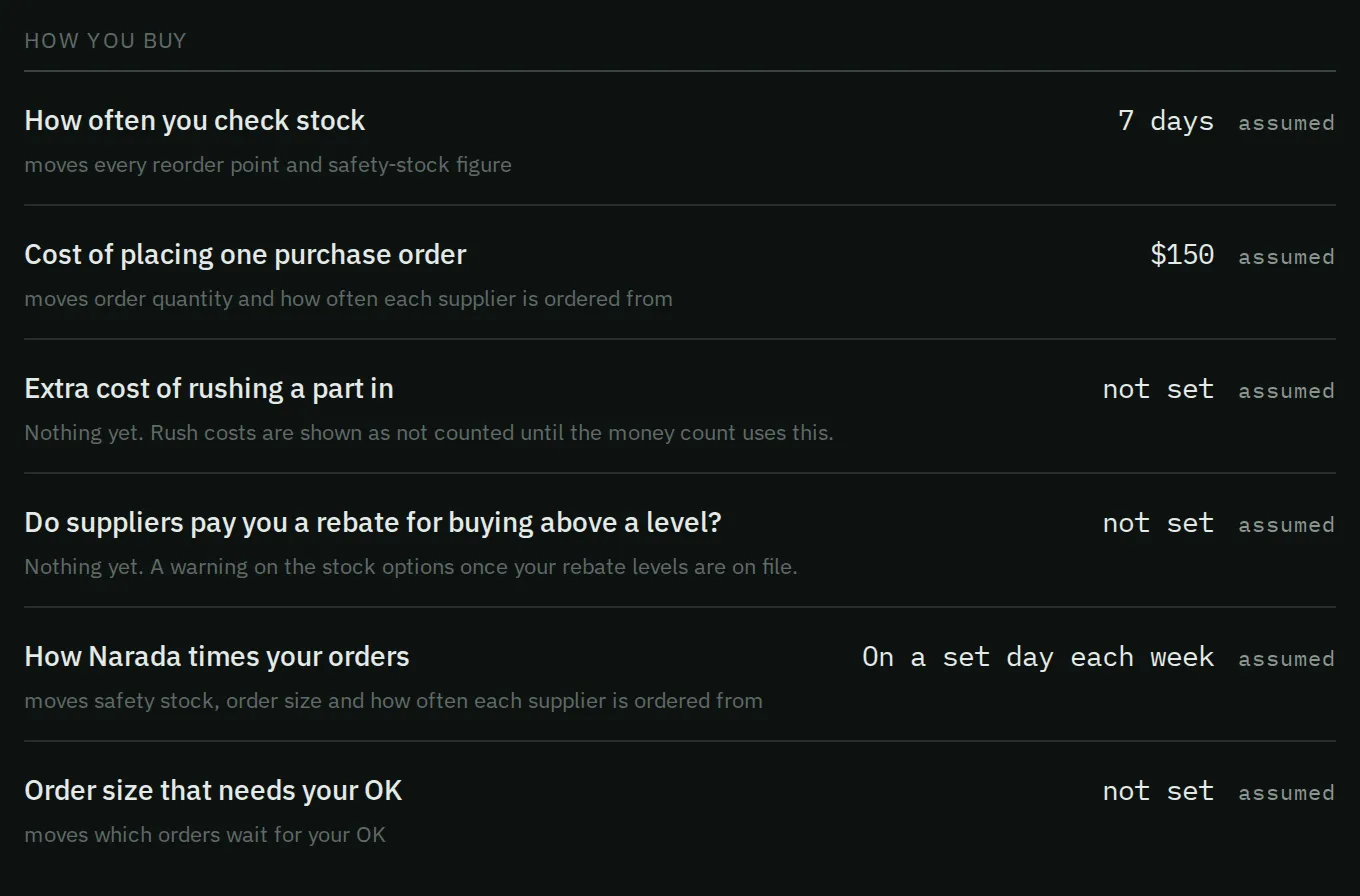
The How you buy group. Each row shows the value Narada uses, and whether it is assumed or stated by you.
How we read your stock
Section titled “How we read your stock”One line says how your stock files arrive, and how Narada reads them.
Suppliers
Section titled “Suppliers”Each supplier has a card. It shows the lead time Narada measured from your orders, and the lead time the supplier promised. It also shows the payment terms, and boxes for the PO email, the minimum order, the free-freight line, the pay terms and Returns within (days).
Below the boxes is what Narada measured from your history: your smallest order to that supplier, and how often you order from them. A search box appears when you have many suppliers.
A fold called Ordering cost, cycle & freight fee holds three boxes. They are the cost of one order to this supplier, how often you can order, and the freight charge below the free-freight line. These need the Planner plan.
How do I replace a default?
Section titled “How do I replace a default?”- Open a row marked assumed. Start with the cost of one order, holding cost, and the cost of your money.
- Read the explanation and where the default comes from. Type your answer in the box, and press Save.
- The row changes to stated, and the top line counts one fewer default.
- To go back to the default, clear the box and save. The row says when this is possible.
How should I set my class targets and stock budget?
Section titled “How should I set my class targets and stock budget?”Two rows decide how much stock Narada plans, and where it goes.
How the class targets are applied (in How you sell) has three choices:
- The class target on every part. Every part in a class aims at its class target, for example every C part at 85%. Simple to explain. But a slow, expensive part with a thin margin gets the same cover as a cheap part that sells every week.
- Spread by cost across the class. Cheap parts are held higher and expensive parts lower, so the class still averages its target with less money in stock. Expensive parts run out a little more often.
- Most money within your stock budget. Each part’s target comes from its own money: what running out loses (the margin, times the share of customers who walk away) against what holding one more unit costs. One dial then moves every part together until the plan fits your stock budget. A cheap, profitable part may aim at 97%. One that costs more, with a thin margin, may aim at 70%.
Stock you want to hold (in What stock costs you) is that budget: the stock value, at cost, across your whole book.
- Leave it empty and Narada holds what your class targets need, then spends it where it protects the most profit. If you hold more than that today, the plan holds less. If you hold less, it holds more.
- Type a number when you have a real cash limit, such as “no more than $1.5M”. Narada shares exactly that amount out, most profitable parts first.
Raising a class target buys more fill, but it also means more stock. With the budget choice, the extra money goes to the parts where it protects the most profit first. Your proving run replays each choice on your own history, priced the same way. Ask us for the side-by-side, so you can pick with the numbers in front of you.
Every setting explained
Section titled “Every setting explained”Each setting below uses its exact name in the app. For each one: what it decides, where Narada starts, and when to change it. The How Narada thinks pages show how the numbers fit together.
How you buy
Section titled “How you buy”How often you check stock What it decides: the days between your looks at the buy list. Nothing gets ordered in between, so those days need stock too. Starts at: 7 days, once a week. Change it when: you review the list more or less often. A buyer who checks every Monday and Thursday would enter about 3. It moves every reorder point and safety-stock figure. Suppliers on a fixed order calendar follow the calendar instead.
Cost of placing one purchase order What it decides: the time and admin one order costs you, whatever its size. Under Per supplier, from your cost per order, a higher cost means fewer, bigger orders. Starts at: $150. Published figures run from $55 to $411 per order. Change it when: you know your own cost. Add up buyer time, approvals, receiving and paying the invoice for one order. It does not include freight. Freight is set per supplier.
Extra cost of rushing a part in What it decides: what you pay on top to rush a part, as a share of its cost. Starts at: empty. Recorded, not used yet. Narada shows rush costs as “not counted” until its money count uses this.
Do suppliers pay you a rebate for buying above a level? What it decides: whether buying less could cost you a supplier rebate. Starts at: not answered. Recorded, not used yet. Once your rebate levels are on file, Narada will warn you before a lower stock plan drops you below one.
How Narada times your orders What it decides: when parts are ordered. There are three choices:
- On a set day each week (the start). Stock covers the delivery wait plus the days until your next check. Safe if you buy weekly.
- Whenever a part needs it. Leaner, because there is no gap between checks to cover. Only works if someone looks at the list most days.
- Per supplier, from your cost per order. Each supplier gets its own rhythm. Expensive-to-order suppliers are ordered less often, in bigger batches. Needs Cost of placing one purchase order first.
It moves safety stock, order size and how often each supplier is ordered from.
Overbuying that needs your OK What it decides: which order lines wait for your confirmation. Narada asks when a line would add more than this in stock beyond a year of that part’s own sales. A line that would leave more than four years of stock is always held too. Otherwise a large order of fast sellers needs no OK. Starts at: empty, which means your own typical large order line. Change it when: you want to see more of the big buys yourself. Set it lower. A higher amount than your typical large line has no effect.
What stock costs you
Section titled “What stock costs you”What holding stock costs you What it decides: what one year on the shelf costs, as a share of the stock’s value. It covers storage, insurance, shrinkage and the cash tied up. Starts at: 25%, the textbook figure. Change it when: you know your own costs. Cheap warehouse space and low shrinkage mean lower. Tight space or costly borrowing mean higher. A higher number makes each part’s money answer lower, so Narada may hold less. It never goes below a class floor. It moves carrying cost, overstock and dead stock.
What your money costs you What it decides: what your cash costs, as the rate you borrow at or could earn elsewhere. Starts at: 9%. Change it when: you know your borrowing rate. It changes the cash figures only. It does not change what Narada tells you to order.
When stock counts as dead What it decides: when a part with too few sales to show a rhythm is called dead. Parts with a rhythm are judged by their own usual gap between sales. Starts at: 90 days. Change it when: your trade is slower or faster. A supplier of rarely needed spares may want 180 days. It moves the Clear Stock list. It does not know seasons, so a snow product in July is not dead.
When stock counts as too much What it decides: how many days of cover a part can hold before it is flagged as overstocked. It also guards buying when a supplier minimum or pack size would push cover past it. Starts at: 60 days. Change it when: you are happy to hold more cover, for example on parts you buy only twice a year. It never holds back a buy your sales need on their own. It only checks the extra a supplier rule adds.
Stock you want to hold What it decides: the total stock, at cost, the plan aims for. Used only with Most money within your stock budget. Starts at: empty. See How should I set my class targets and stock budget? above.
How you sell
Section titled “How you sell”Floor — A items, Floor — B items, Floor — C items What they decide: the lowest target each class may have. A target is how sure you want to be of not running out while you wait for a delivery. Start at: 95%, 90% and 85%. Change them when: running out costs you more or less than average. On your top parts, the floor usually decides the stock, so the A floor matters most. These are the chance of not running out in one order cycle, not the share of units shipped. See How sure Narada aims to be.
Lost-sale share — A items, Lost-sale share — B items, Lost-sale share — C items What they decide: when a part is out, the share of customers who buy elsewhere rather than wait. Start at: empty. Empty means Narada assumes every stockout loses the whole sale. Change them when: many customers wait for back orders. A trade counter where most customers go next door might enter 60%. A business where contractors wait a day might enter 20%. A higher share makes running out cost more, so Narada holds more of that class.
Out-of-stock parts you rush in What it decides: of the customers who wait, the share you rush the part in for. Starts at: empty. Recorded, not used yet. Rush costs show as “not counted” until Narada’s money count uses this.
Cost of a customer waiting What it decides: what a waiting customer costs you, as a share of the part’s price. For example a discount or a second delivery. Starts at: empty. Recorded, not used yet. Waiting costs show as “not counted” until Narada’s money count uses this.
When one part on an order is missing, does the customer take the whole order elsewhere? What it decides: whether a missing slow part can cost you the whole order, not just its own margin. Starts at: not answered. Recorded, not used yet. Once that step is built, a “Often” answer will raise what running out costs on slow parts.
How the class targets are applied What it decides: how the class floors and each part’s own money combine. The three choices are explained above, and in How sure Narada aims to be. Starts at: The class target on every part.
Lowest target any one part can get when spread by cost What it decides: the lowest target any part can get under Spread by cost across the class. Starts at: 80%. Change it when: your most expensive parts run out too often under that choice. Raise it. It does nothing under the other two choices.
Sales history used to rank parts A, B and C What it decides: how many days of sales rank your parts into A, B and C. It is also the window Narada reads each part’s sales swings from. Parts whose forecast has not proved itself use its average sales too. Starts at: 90 days. Change it when: your classes jump around too much. A longer window is steadier. A shorter one reacts faster to change.
Months your sales peak What it decides: which months the forecast treats as your peaks. The hint reaches the forecast and the seasonality check. Starts at: none. Change it when: your sales have clear busy months, such as heating parts in winter. It does not add safety stock by itself. Any change in orders comes through the forecast. See How the forecast is made.
Your data
Section titled “Your data”How your sales arrive What it decides: whether your sales file has one row per sale, or totals per week. Forecasting must know which, or it can size orders wrong. Starts at: what Narada read from your files. Change it when: the guess is wrong. It does not change your files.
Check stock for expiry dates What it decides: whether Narada flags parts near the end of their shelf life. Starts at: off. Turn it on when: you sell parts that expire, such as sealants or batteries, and your product file has shelf-life or batch dates.
Track what customers owe you What it decides: whether Collections, the cash-in projection and days-to-collect are on. Starts at: off. Turn it on when: you send an accounts-receivable file. It does nothing without one.
Currency figures are shown in What it decides: the currency label on every figure. Starts at: USD. Pick the currency your files are in. Narada does not convert between currencies.
Risk estimates
Section titled “Risk estimates”These three settings never change an order. They only size a risk figure.
Days to replace a supplier, when we have no lead time for it What it decides: how long Narada assumes it would take to replace a supplier, when it has no lead time for them. It sizes the risk of relying on one supplier. Starts at: 14 days.
Chance a big customer leaves in a year What it decides: the chance applied to a dominant customer’s margin, to size the risk of depending on them. Starts at: 50%.
Forecast improvement we assume for the recovery estimate What it decides: how much better forecasting is assumed to do in the potential-recovery estimate, in the check of your ERP’s reorder settings. Starts at: 30%.
How do I fill in a supplier?
Section titled “How do I fill in a supplier?”- Open the supplier’s card. Type the minimum order, the PO email, the free-freight line and the pay terms. Each box saves when you leave it.
- If the supplier takes returns, type how many days in Returns within (days).
- Read what Narada measured from your history. If it is right, press Use this beside it.
- To set ordering costs, open Ordering cost, cycle & freight fee and fill in its three boxes.
Narada never emails a supplier itself. You send orders from your ERP or your own email.
Returns within (days) switches on “return it to the supplier” for dead stock. Only units delivered inside that window count. The value is shown “before any restocking fee”. You can also send it as a return_window_days column in your suppliers file.
How do I know it worked?
Section titled “How do I know it worked?”A saved answer shows on its row straight away. The change to the buy list shows after the next overnight run.
Common questions
Section titled “Common questions”Do I have to fill in everything? No. Narada runs on its defaults until you answer. Start with the cost of one order, holding cost, and each supplier’s minimum. Those change the buy list most.
I saved a number, and nothing changed. Changes show on the next overnight run.
Why can’t I edit? Editing needs the Edit business settings permission. Ask the owner.
Why does a supplier show two lead times? The measured one comes from your own orders and receipts. The promised one is what the supplier quotes. Narada plans on the measured one.
Can I set 40 suppliers’ minimums at once?
Yes. Send a suppliers file with a min_order_value column, and moq in your products file. Or edit each one here under Suppliers.
Where do I enter a restocking fee? There is no box for it. Return values are shown “before any restocking fee”. Ask the supplier what they charge. The return request email asks them too.
Is the 25% holding cost a default? Yes. Narada assumes holding stock costs 25% of its value a year. Change it under What holding stock costs you.
Which cost does Narada use: last, average or standard? It uses the cost column your ERP export gives. For Odoo, that is the standard price. Average or landed cost works best.
What this page does not do
Section titled “What this page does not do”- It does not show the effect of a change across the whole business before you save. Per-part what-ifs live on the part’s page.
- It does not show who changed a number here. The Change history tab in Settings lists changes made on screen, but not changes from file uploads.
- Changes take effect at the next overnight run.
- Some rows are recorded but not used yet. They say “Nothing yet.” and give the reason.
- Settings: your team, plan, export layouts, alerts and account.
- Orders: the supplier cards that use these minimums.
- What to Order: the buy list these numbers shape.